CH7: File Headers, Carving, and Fragmentation
Introduction
File carving is one of the most technically demanding recovery techniques in digital forensics. When a file is deleted, the file system marks the space as available but does not erase the data. A forensic analyst can recover that data by scanning unallocated space for file signatures, then reconstructing complete files based on predictable header and footer sequences. This process, called signature-based carving, requires understanding the fundamental structure of file formats at the hexadecimal level. The challenge deepens when files are fragmented across non-contiguous sectors. Carving fragmented files demands both technical precision and methodical validation. This chapter breaks down the mechanics of file signatures and then applies them by hand in a hex editor, where you locate a file's signatures and offsets yourself, copy the file out, and correct files whose extensions or headers were changed to hide them. From there, it introduces automated carving tools, the effect of fragmentation, and metadata extraction, and shows you how to build confidence in recovered files by examining their internal structure rather than trusting file extensions alone.
Learning Objectives
By the end of this chapter, you will be able to:
- Identify common file types by their header and footer signatures (magic bytes) and explain why file extensions are unreliable identifiers.
- Manually carve a file with a hex editor by locating its header and footer offsets, and identify and correct files whose extensions or headers have been altered.
- Perform signature-based file carving using Scalpel, Foremost, and PhotoRec, including configuring custom carving rules.
- Explain how file fragmentation affects carving success and validate carved files by examining their internal structure in addition to their headers and footers.
- Extract and interpret metadata from digital images, Microsoft Office documents, and PDF files.
7.1 File Signatures and Magic Bytes
Understanding File Signatures
A file signature (also called a magic number or magic bytes) is a fixed sequence of bytes at a known offset within a file that uniquely identifies the file type. These signatures exist because the operating system and applications need a reliable way to recognize what a file contains, independent of what the filename claims.
Consider the file extension. A file named report.pdf could actually contain a JPEG image, a Word document, or executable code. The .pdf extension is metadata stored in the file system's directory structure, not in the file data itself. An attacker could rename a malicious executable to innocent.jpg to evade detection. A user might accidentally save a file with the wrong extension. Conversely, a deleted file's directory entry (which stores the extension) is often overwritten or damaged, leaving no trace of the original filename. File signatures solve this problem: they are embedded directly in the file content and survive deletion.
File signatures are not random. They are carefully chosen by file format designers to be unlikely to occur by chance in unrelated data. They typically appear at the beginning of a file (the header), and many formats also include closing sequences (footers) that mark the end of the file.
Figure 7.1 connects a filename to the bytes that require examination.
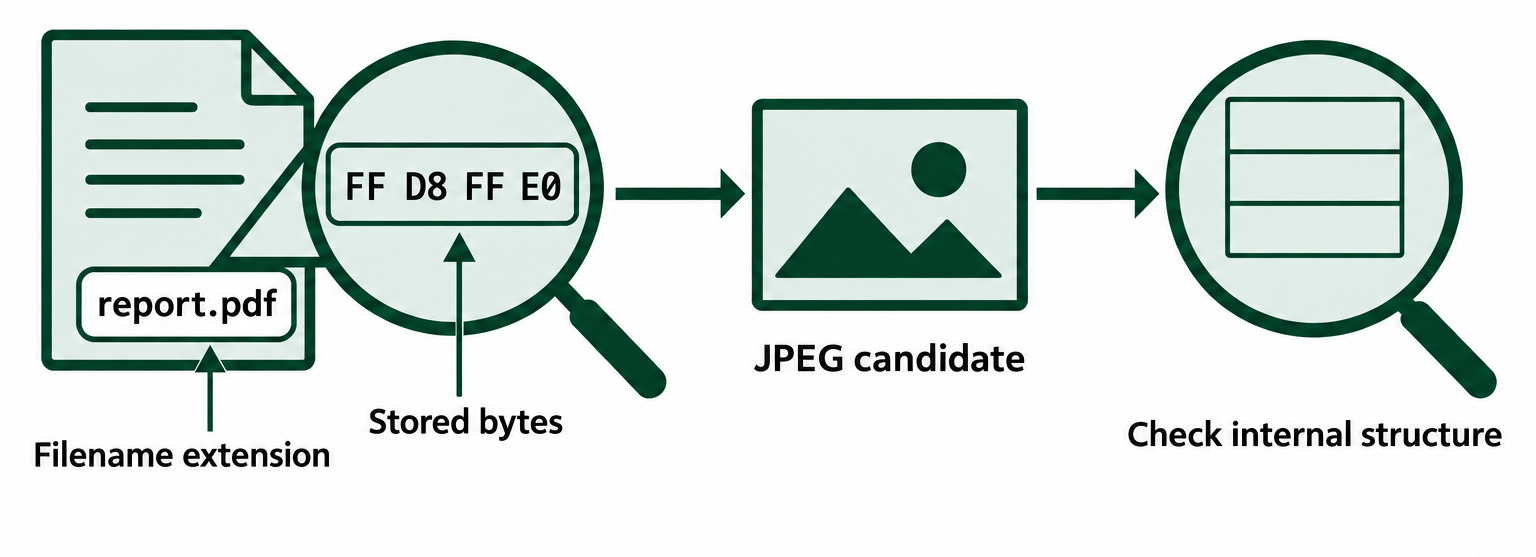
Figure 7.1: A filename can disagree with the stored content. Signature recognition identifies a candidate for further examination.
Text description for Figure 7.1
In this synthetic example, report.pdf is the directory name, while its first bytes are FF D8 FF E0. Those bytes suggest JPEG content. The analyst checks the remaining structure and decodes the file before deciding whether the candidate is a usable JPEG. Changing the extension alone does not change the file's bytes.
Common File Signatures
The following table lists widely encountered file signatures, their hexadecimal values, and their significance in forensic recovery.
| File Type | Header (Hex) | Footer (Hex) | Offset | Notes |
|---|---|---|---|---|
| JPEG | FF D8 FF | FF D9 | 0 | Fourth byte varies: FF D8 FF E0 (JFIF) or FF D8 FF E1 (EXIF) |
| PNG | 89 50 4E 47 | IEND (49 45 4E 44) | 0 | PNG signature is 8 bytes: 89 50 4E 47 0D 0A 1A 0A |
| GIF | 47 49 46 38 | 3B or 00 3B | 0 | 47 49 46 38 39 61 (GIF89a) or 47 49 46 38 37 61 (GIF87a) |
| 25 50 44 46 | 25 25 45 4F 46 (%%EOF) | 0 | Header is %PDF in ASCII; may include version (e.g., %PDF-1.4) | |
| ZIP | 50 4B 03 04 | 50 4B 05 06 | 0 | Central directory footer; local file headers also start with 50 4B 03 04 |
| MS Office (DOC) | D0 CF 11 E0 | Variable | 0 | OLE (Object Linking & Embedding) signature; legacy format |
| DOCX/XLSX/PPTX | 50 4B 03 04 | 50 4B 05 06 | 0 | ZIP container; open with unzip to inspect XML structure |
| EXE/DLL | 4D 5A (MZ) | Variable | 0 | DOS/Windows executable; the 4-byte value at offset 0x3C gives the location of the Portable Executable (PE) signature, 50 45 00 00 |
| RAR | 52 61 72 21 1A 07 | Variable | 0 | Rar! in ASCII; followed by 00 (RAR 4) or 01 00 (RAR 5) |
| 7-Zip | 37 7A BC AF | Variable | 0 | 7z header; less common in forensic recovery |
This table covers only the formats analysts encounter most often. For any other format, or to confirm a signature's exact bytes and offset, consult Gary Kessler's File Signatures Table. Kessler, a digital forensics educator and examiner, maintained the table for more than two decades. In 2025, SEARCH, The National Consortium for Justice Information and Statistics, took over the table and now hosts it as GCK File Signatures. Forensic examiners and tool developers treat it as the standard reference for file signatures. For each format, it lists the header bytes, the footer bytes where a footer exists, the offset where the signature appears, and the file extensions associated with the format.
Header-Footer Pairs and Boundary Detection
Many file formats pair a header signature with a footer signature. This pairing is critical to carving because it tells the carving tool when to stop collecting data.
A JPEG file begins with FF D8 FF and ends with FF D9. When the carver encounters FF D8 FF in unallocated space, it begins collecting bytes. It continues until it encounters FF D9, then marks that position as the end of the file. The complete sequence becomes a recovered JPEG.
PDFs use %PDF as the header and %%EOF as the footer. A PDF file may contain multiple objects, cross-reference tables, and incremental updates, but the footer reliably marks the logical end of the file.
ZIP files and their derivatives (DOCX, XLSX, PPTX, JAR, APK) use 50 4B 03 04 to mark local file headers and 50 4B 05 06 to mark the central directory footer. A carver looking for ZIP files scans for 50 4B 03 04, then collects data until it encounters 50 4B 05 06. If fragmentation or corruption occurs, the carver may produce an incomplete or invalid ZIP, but the header-footer model gives it a clear stopping criterion.
Extension Mismatch Detection
During carving, it is common to recover files whose actual signature does not match the directory entry extension. These mismatches fall into several categories:
- Accidental mislabeling: A user saves a file as
photo.txtinstead ofphoto.jpg. The file content contains the JPEG signature, and carving will correctly identify it as JPEG. - Intentional obfuscation: An attacker renames
malware.exetodocument.doc. A carver scanning for PE signatures (MZ header) will still find and extract the executable, regardless of the misleading extension. - Lost directory metadata: After deletion, the directory entry is overwritten. Without the original filename, a carver has only the file signature to determine type. The signature is reliable; the extension is gone.
- Embedded files: A DOCX file (ZIP container) includes embedded images with their own JPEG or PNG signatures inside. A naive carver might extract these embedded images as separate files, which is technically correct but may inflate recovery results.
Critical Distinction
Never trust file extensions during carving or validation. A file named report.pdf that starts with FF D8 FF is a JPEG, not a PDF. Validate by examining the actual file content (hex dump, magic bytes, internal structure) and testing the file with the appropriate application. A file that carves cleanly but refuses to open in its purported application is a sign that the carver made an error or the file was partially overwritten.
Embedded Signatures and Multi-Format Files
Modern file formats often nest one format inside another. A DOCX file is a ZIP container holding XML, images, and metadata. A PDF may contain embedded fonts, images, or documents. During carving, these nested signatures can cause confusion.
When a carver scans for ZIP signatures (50 4B 03 04), it may find:
- The outer DOCX file (legitimate ZIP).
- The embedded thumbnail image inside the DOCX (another ZIP or image signature).
- Fragments of deleted images stored elsewhere on the device.
The carver cannot automatically distinguish between these cases. A skilled analyst reviews the results, checks file sizes and locations, and decides which recovered files represent complete documents and which are fragments or nested content.
Figure 7.2 shows how a package contains related objects.
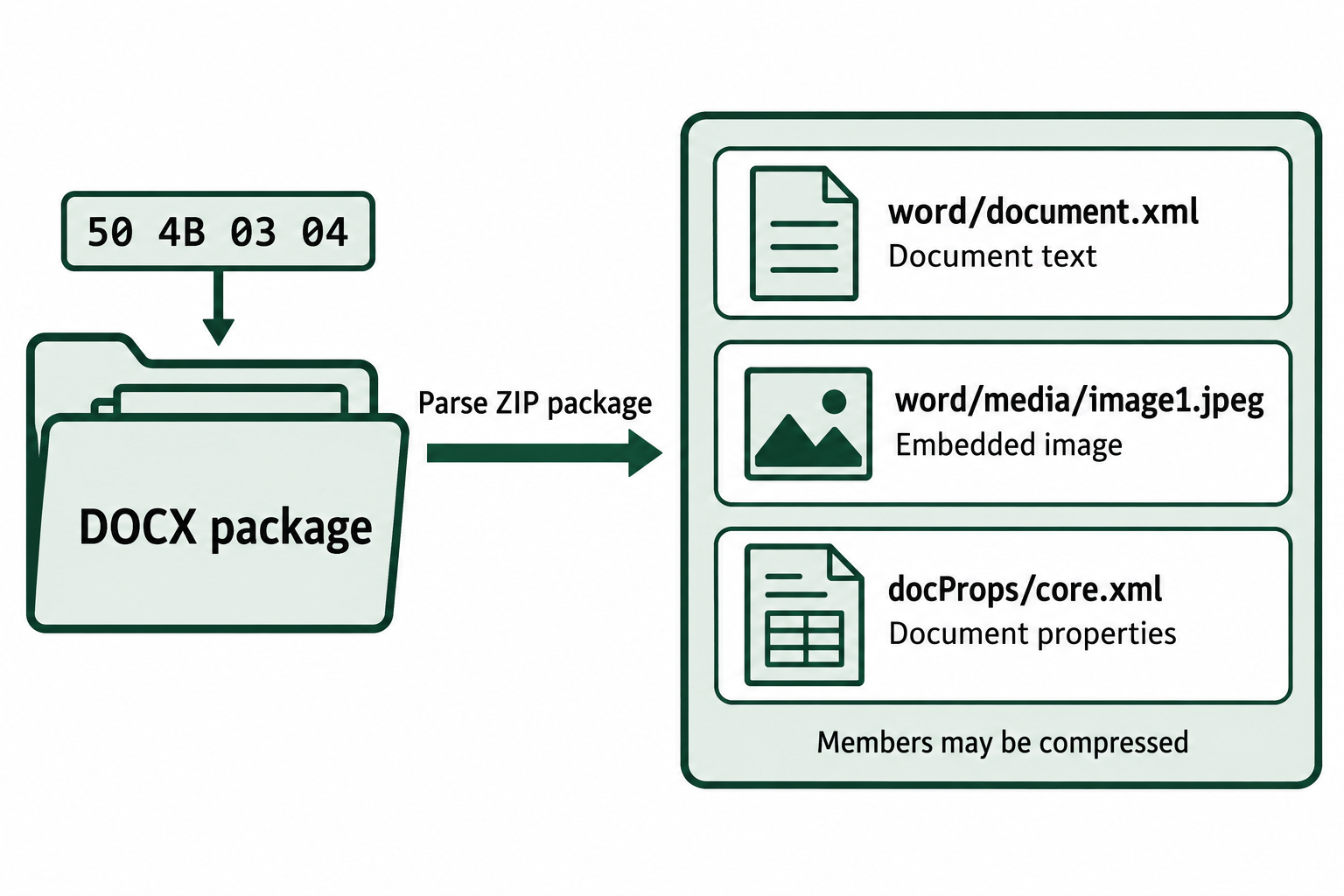
Figure 7.2: A recovered document can contain several other objects. ZIP package parsing reveals their roles and relationships.
Text description for Figure 7.2
A typical DOCX file uses a ZIP package with local file-header signature 50 4B 03 04. The package can include word/document.xml for the main document, word/media/image1.jpeg for an embedded picture, and docProps/core.xml for core properties. These illustrative member names describe logical contents after package parsing. Compression can prevent a raw scan of the outer archive from seeing a member's original signature. An embedded image and its parent document should retain their relationship in recovery notes.
7.2 Manual Carving with a Hex Editor
The automated carvers covered in Section 7.3 apply the header and footer rules from Section 7.1 to thousands of candidate files at a time. Before relying on them, an analyst should be able to perform the same work by hand. A hex editor is a program that displays the raw bytes of a file or disk image as hexadecimal values, next to an offset column and a text column. With a hex editor, you can locate a file signature, measure exactly where a file begins and ends, copy those bytes into a new file, and correct a file whose name or header has been changed to hide its type.
Manual carving is slower than automated carving, so analysts use it in specific situations:
- Confirming or correcting a result that an automated carver produced.
- Recovering a single file of interest when you already know roughly where it is stored.
- Recovering a file type that has no rule in the carver's configuration file.
- Examining a file whose extension or header does not match its content.
- Demonstrating a recovery step by step, so that a reviewer, another examiner, or a court can follow and repeat it.
Reading the Hex Editor Display
Most hex editors use the same three-column layout:
- Offset column: The position of the first byte in each row, counted from the start of the file. Offsets begin at 0 and are almost always shown in hexadecimal. A leading
0xmarks a number as hexadecimal, so the row labeled0004A200begins at offset0x4A200, which is 303,616 bytes into the file. - Hex column: The bytes themselves, usually 16 per row, each written as two hexadecimal digits.
- Text column: The same bytes interpreted as ASCII (American Standard Code for Information Interchange) characters. Printable characters appear as letters and symbols, and non-printable bytes appear as dots. Text-based markers such as
%PDF,JFIF, andIENDare often easier to spot here than in the hex column.
To find the offset of any single byte, add its column position (00 through 0F) to the row offset. In the row below, the FF in column 00 is at offset 0x4A200, and the 4A that begins the text JFIF is in column 06, so it is at offset 0x4A206.
Offset(h)  00 01 02 03 04 05 06 07 08 09 0A 0B 0C 0D 0E 0F  Decoded text
0004A200   FF D8 FF E0 00 10 4A 46 49 46 00 01 01 01 00 48  ......JFIF.....H
Offsets in a hex editor are hexadecimal, but many command-line tools expect decimal numbers. Windows Calculator in Programmer mode converts between the two. On Linux and macOS, the shell command printf "%d\n" 0x4A200 prints 303616.
Video: Reading Hex Offsets
Figure 7.3 connects a byte's position to its offset.
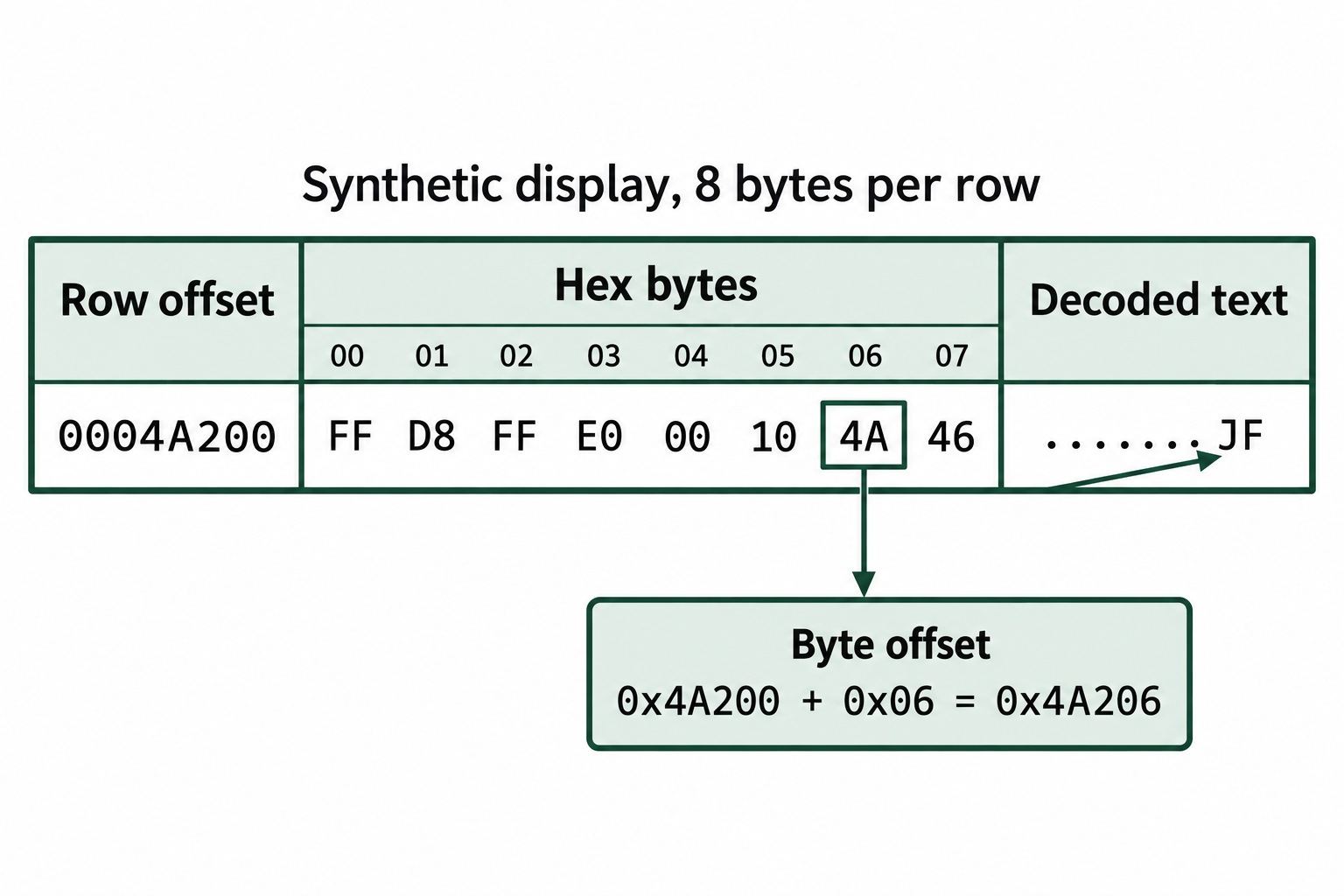
Figure 7.3: A byte's offset equals the row offset plus its column position. This representative display uses eight bytes per row for readability.
Text description for Figure 7.3
The synthetic row starts at hexadecimal offset 0x4A200. Columns 00 through 07 contain FF D8 FF E0 00 10 4A 46. Byte 4A occupies column 06, so its offset is 0x4A200 plus 0x06, or 0x4A206. In the decoded text, 4A represents J and 46 represents F. Dots represent bytes that the display does not show as printable characters. The chapter's full example uses sixteen bytes per row.
Common Hex Editors by Platform
Every editor in the table below can locate signatures and copy a range of bytes to a new file. They differ in platform support, cost, and extra analysis features.
| Editor | Operating Systems | License | Features Useful for Carving |
|---|---|---|---|
| HxD | Windows | Free (freeware) | Hex-value search, Select Block dialog that accepts start and end offsets, built-in checksum and hash calculation, can open physical disks and memory |
| WinHex | Windows | Commercial (X-Ways Software) | Disk and image editing, data interpreter, templates for file system structures |
| Hex Fiend | macOS | Free, open source | Opens very large files, including full disk images, without loading them entirely into memory, plus hex and text search |
| ImHex | Windows, macOS, Linux | Free, open source | Pattern language that parses and color-codes file structures, data inspector, bookmarks for marking offsets |
| GHex | Linux (GNOME desktop) | Free, open source | Simple editor with a graphical user interface (GUI), available in the Kali and Debian package repositories |
| Okteta | Linux (KDE desktop) | Free, open source | Structure definitions and a checksum tool |
| 010 Editor | Windows, macOS, Linux | Commercial (SweetScape) | Binary templates that label each field of many file formats |
xxd and hexedit |
Linux, macOS | Free, open source | Terminal tools. xxd prints a hex dump and ships with the Vim editor. hexedit edits bytes in a text-mode interface |
On Kali Linux, install GHex with sudo apt install ghex. The steps in this section use HxD menu names because HxD is widely installed on Windows forensic workstations. Other editors provide the same functions under different menu names.
The Manual Carving Process
Manual carving follows the same header-and-footer logic an automated carver uses. The difference is that you make and record each decision yourself.
- Work on a copy and hash it. Never open original evidence in an editor that can write to it. Make a working copy of the image and record its hash with
sha256sum(Linux),shasum -a 256(macOS), orGet-FileHash(Windows PowerShell). Carving from a full disk image works, but a smaller file that contains only unallocated space is faster to search. The Sleuth Kit commandblkls image.dd > unalloc.binextracts the unallocated blocks into a separate file. Offsets in that extracted file do not match offsets in the original image, so record which file you searched. - Search for the header. Open the working copy and search for the header bytes. In HxD, choose Search > Find (Ctrl+F), set the data type to Hex-values, and enter the signature, such as
FF D8 FFfor a JPEG. When the editor jumps to a match, record the offset of the first header byte. This is the starting offset. - Confirm the header. A short signature can appear in unrelated data by chance, so check the bytes that follow it. A JPEG header of
FF D8 FF E0is followed by the textJFIFat offset +6, andFF D8 FF E1is followed byExifat offset +6. A PDF header continues with a version string such as%PDF-1.7. If the expected structure is missing, the match is probably random data. Search for the next occurrence. - Search forward for the footer. With the cursor at the starting offset, search forward for the footer bytes, such as
FF D9for a JPEG. Record the offset of the first footer byte. The file ends at the last byte of the footer, plus any bytes the format adds after it. Use the table below to calculate the ending offset. - Select the block. In HxD, choose Edit > Select block (Ctrl+E), enter the starting and ending offsets in hexadecimal, and click OK. HxD also accepts a length in place of an ending offset. In editors without a range dialog, click the first byte, then hold Shift and click the last byte. Check the selection length in the status bar. It should equal the ending offset minus the starting offset, plus 1.
- Copy the block to a new file. Choose Edit > Copy (Ctrl+C), create an empty file with File > New (Ctrl+N), paste with Edit > Paste (Ctrl+V), and save the new file with the extension that matches the signature. A name that records the source offset, such as
carved_0x4A200.jpg, links the file back to your notes. - Validate and document. Open the carved file in an application that supports its format and confirm that it displays completely. Compare its size to the length you calculated, hash it, and record the source file, the starting and ending offsets, the length, the carved file's hash, and the validation result.
The following table shows where each common format ends in relation to its footer. Selecting only the footer signature and stopping there cuts off bytes that some formats need in order to open.
| File Type | Footer to Search For | Where the File Ends | Common Complication |
|---|---|---|---|
| JPEG | FF D9 |
Footer offset + 1 (the D9 byte) |
EXIF photos contain an embedded thumbnail with its own FF D8 and FF D9. The first FF D9 after the header can belong to the thumbnail. If the carved file opens as a tiny image, search for the next FF D9. |
| PNG | 49 45 4E 44 (IEND) |
Footer offset + 7, because a 4-byte cyclic redundancy check (CRC) follows IEND. In a valid PNG, those four bytes are AE 42 60 82. |
Few complications. The IEND chunk is fixed in size. |
25 25 45 4F 46 (%%EOF) |
Footer offset + 4, plus any line-ending bytes (0D 0A or 0A) that follow |
A PDF saved with incremental updates contains more than one %%EOF. Stopping at the first one recovers an earlier version of the document. |
|
| ZIP, DOCX, XLSX, PPTX | 50 4B 05 06 |
Footer offset + 21, because the end of central directory record is 22 bytes long. Add the length of the archive comment, if one exists. | The last two bytes of the record store the comment length in little-endian byte order. A value of 00 00 means there is no comment. |
Figure 7.4 shows the bytes that follow recognizable closing markers.
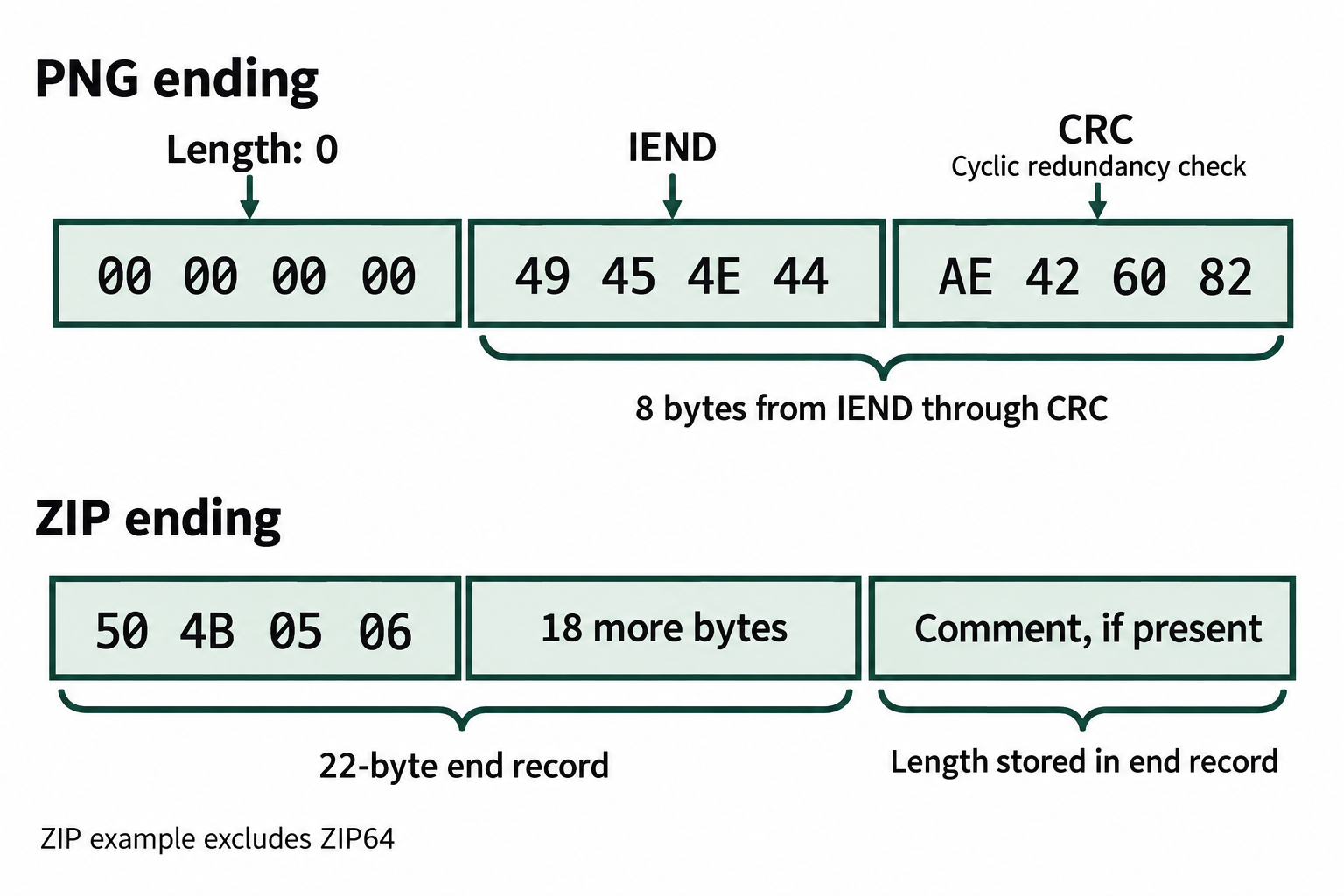
Figure 7.4: These closing structures extend beyond their recognizable markers. Count the complete record when selecting a carving boundary.
Text description for Figure 7.4
For PNG, the last chunk contains a four-byte zero length, the four-byte IEND type (49 45 4E 44), and its four-byte cyclic redundancy check, or CRC (AE 42 60 82). Starting at the first I in IEND, the last byte is seven offsets later. In the standard ZIP example, the end-of-central-directory signature 50 4B 05 06 begins a 22-byte record. Eighteen record bytes follow the signature. Any archive comment then follows that record, with its byte count stored in the record's last two bytes. ZIP64 has additional structures.
Putting It Together: Carving a JPEG by Hand
An automated carver reported a JPEG in the unallocated space of a USB drive image. The photo is relevant to your case, so before you list it in your report, you carve it by hand to confirm the carver's result.
- You search the unallocated space file for
FF D8 FFand land on offset0x4A200. The text column showsJFIFat offset0x4A206, which confirms a JPEG header. The starting offset is0x4A200. - You search forward for
FF D9and find it at offset0x4F8A6. The ending offset is0x4F8A6 + 1 = 0x4F8A7. - The length is
0x4F8A7 - 0x4A200 + 1 = 0x56A8, which is 22,184 bytes. - You select the block from
0x4A200through0x4F8A7, confirm that the status bar reports a length of0x56A8, and paste it into a new file namedcarved_0x4A200.jpg.
Offset(h)  00 01 02 03 04 05 06 07 08 09 0A 0B 0C 0D 0E 0F  Decoded text
0004F8A0   8A 28 A2 8A 00 3F FF D9 00 00 00 00 00 00 00 00  .(...?..........
The row above shows the end of the file. The FF D9 footer occupies columns 06 and 07, and the zeros that follow are unused space. The new file opens as a complete photograph, and its Secure Hash Algorithm 256-bit (SHA-256) hash matches the file the automated carver produced. You record the offsets, length, and hashes in your notes.
On a Linux workstation, dd can reproduce the same carve from the command line. dd expects decimal values, so convert the starting offset (0x4A200 = 303,616) and the length (0x56A8 = 22,184) first:
dd if=unalloc.bin of=carved_dd.jpg bs=1 skip=303616 count=22184
sha256sum carved_0x4A200.jpg carved_dd.jpg
Matching hashes confirm that the hex editor selection and the dd command extracted the same bytes. A second method that produces identical output is strong support for your documented offsets.
Figure 7.5 maps the selected range to its inclusive length.
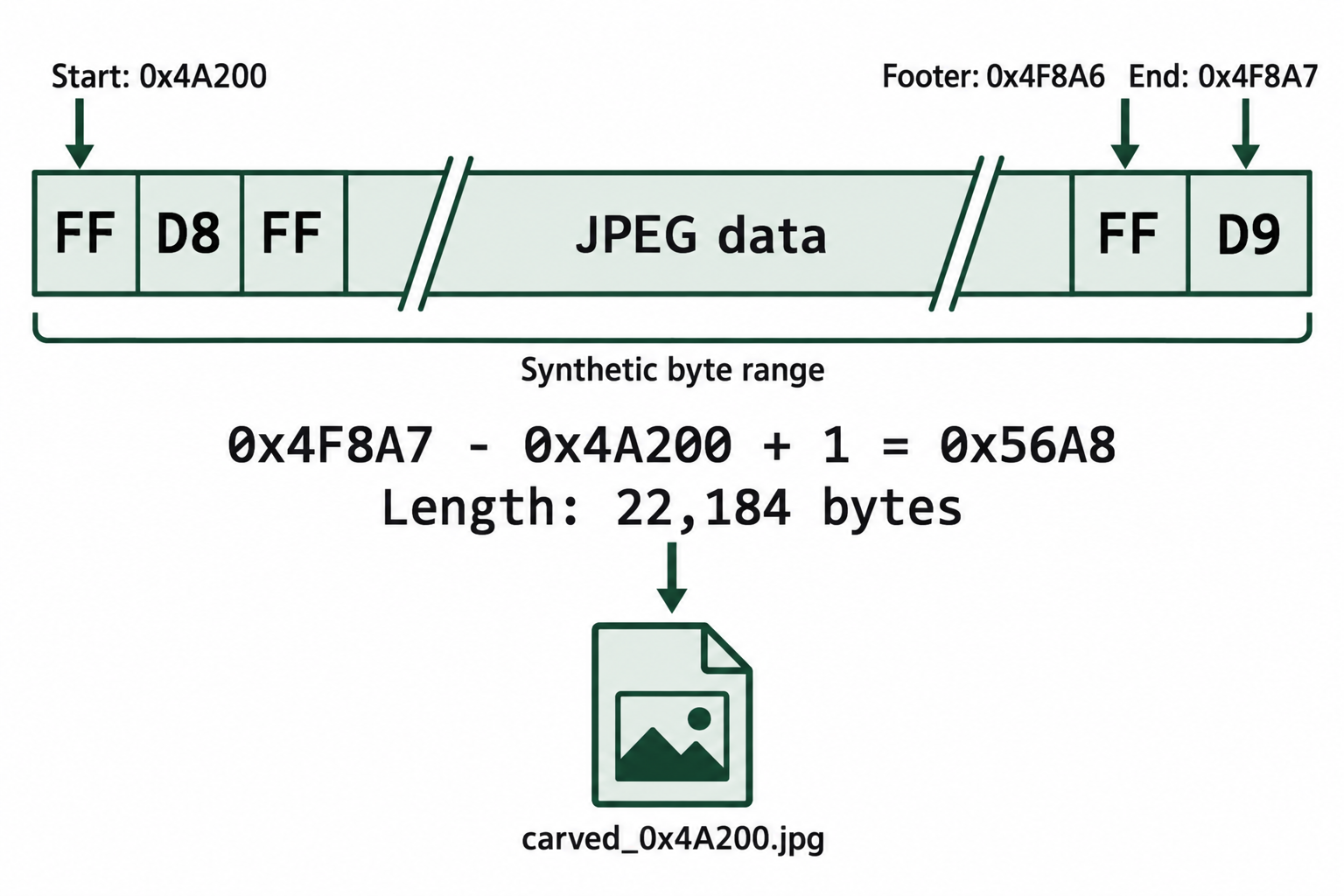
Figure 7.5: The manual example includes the D9 byte at the end of the JPEG marker. Adding one converts the difference between offsets into an inclusive length.
Text description for Figure 7.5
The synthetic header starts at 0x4A200. The FF byte of the footer is at 0x4F8A6, and its D9 byte is at 0x4F8A7. Selecting through D9 gives a length of 0x4F8A7 minus 0x4A200 plus one, which equals 0x56A8 or 22,184 bytes. The selected bytes become carved_0x4A200.jpg. The analyst records the source file because these offsets belong to that specific input.
Identifying and Correcting Mismatched File Signatures
Section 7.1 explained that a file extension is only part of a file's name, so changing it does not change the data. People attempting to hide files use this in two ways. The simpler method renames the file with a misleading extension. The more thorough method also overwrites the file's header bytes, so that tools which rely on signatures fail to recognize it. A hex editor lets you detect both methods and produce a corrected working copy.
Correcting a Renamed File
Suppose a suspect's Pictures folder contains beach_trip.jpg, and it will not open in an image viewer. In a hex editor, the first four bytes are 50 4B 03 04, the ZIP signature. The text column at offset 30 shows a readable path such as invoices/march.csv, which is the name of the first file stored inside the archive. The file is a ZIP archive with a JPEG extension.
In this case, the bytes are intact and only the name is wrong. Rename the working copy to beach_trip.zip and open it with an archive tool. A renamed file keeps the same hash, because a hash is calculated from the file's content and does not include its name.
Other tools confirm the same finding:
- On Linux and macOS,
file beach_trip.jpgreads the signature and reports the file's actual type, such asZip archive data. - On Windows, PowerShell's
Format-Hex -Path .\beach_trip.jpgdisplays the first bytes of the file in hexadecimal. - Forensic suites flag mismatches automatically. Autopsy's Extension Mismatch Detector module, for example, compares each file's signature to its extension and lists the files that disagree.
Repairing an Altered Header
When the header bytes themselves have been overwritten, neither the extension nor the signature identifies the file, and a signature-based carver searching for that header will skip it. The rest of the file usually remains intact, and many formats contain internal structures you can recognize in the text column.
| File Type | Structures That Remain After the Header Is Changed |
|---|---|
| JPEG | JFIF or Exif at offset 6, FF D9 at the end of the file |
| PNG | IHDR at offset 12, IEND near the end of the file |
obj and endobj keywords, /Type /Catalog, %%EOF at the end of the file |
|
| ZIP, DOCX, XLSX, PPTX | Readable file names such as [Content_Types].xml or word/document.xml, central directory entries beginning 50 4B 01 02, and 50 4B 05 06 near the end of the file |
For example, a file named system.dat begins with eight bytes of 00, but the text column shows IHDR at offset 12 and IEND near the end. The file is a PNG whose 8-byte signature was erased. To repair a working copy:
- Confirm that the editor is in overwrite mode. In most hex editors, the Insert key switches between insert and overwrite, and the status bar shows the current mode.
- Place the cursor at offset 0 in the hex column.
- Type the correct signature over the existing bytes. For this PNG, that is
89 50 4E 47 0D 0A 1A 0A. - Save the working copy with the correct extension and open it in an image viewer to confirm that it displays.
- Hash the repaired copy and record the offset, the original bytes, the replacement bytes, and both hash values.
Analyst Perspective
A repaired file is a derivative of the evidence, so its hash will not match the original. Your report should state that you changed the header of a working copy, list the exact bytes and offsets, and include the hashes of both the original and the repaired copy. Another examiner who follows those notes should be able to produce an identical file. The deliberate removal of a header is also a finding in its own right, because it shows that someone took steps to conceal the file.
Figure 7.6 shows how an equal-length overwrite preserves later offsets.
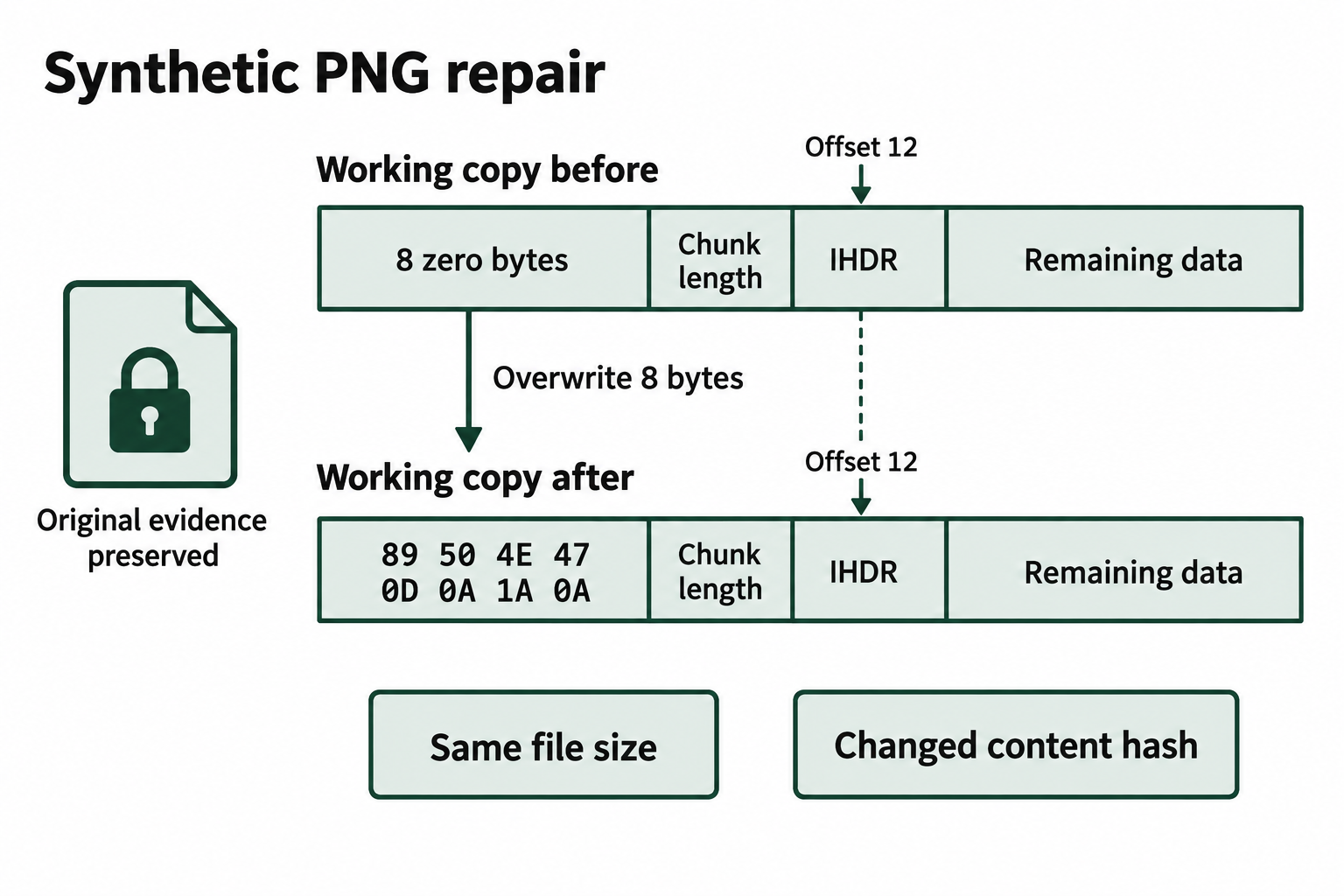
Figure 7.6: An equal-length overwrite preserves later byte positions. The repaired copy remains a documented derivative of the original evidence.
Text description for Figure 7.6
The synthetic original header contains eight zero bytes. On a working copy, the analyst overwrites offsets 0 through 7 with 89 50 4E 47 0D 0A 1A 0A. The following chunk length stays in place, and IHDR still begins at decimal offset 12. The file size remains the same, while the content hash changes because bytes changed. The original evidence remains preserved. The repair still requires structural validation and a record of the before-and-after bytes and hashes.
7.3 Signature-Based File Carving
The Carving Process
File carving is a four-step process: scanning, extraction, validation, and documentation.
Scanning: The carver reads unallocated space (or a specific device region) sequentially, looking for byte sequences that match known file signatures. Modern carving tools use efficient algorithms to avoid unnecessary disk I/O. For example, instead of reading one byte at a time, they read blocks and search within the buffer.
Extraction: When a signature match is found, the carver begins collecting bytes. If a footer signature is defined, it collects until the footer is found. If no footer is defined, it collects a maximum number of bytes (configurable per file type). The extracted data is written to a file, typically in a recovery folder with a sequential name (e.g., image_0001.jpg, image_0002.jpg).
Validation: The recovered file is tested: Does it open in the expected application? Does it display correctly? Do internal checksums match? Some carvers perform basic validation automatically; others require manual inspection.
Documentation: The analyst records where the carved file was found, what size it is, whether it passed validation, and any notes about anomalies (fragmentation, truncation, embedded objects).
Analyst Perspective
On a typical investigation, carving might recover hundreds or thousands of files. Your job is not to validate every single one; instead, you prioritize by relevance to the case. You carve for photo types (JPEG, PNG) if the case involves image sharing. You carve for document types (DOCX, PDF) if the case involves business communications. You carve for multimedia (MP4, MPEG) if the case involves video content. Smart targeting reduces noise and lets you focus on evidence.
Figure 7.7 connects scanning and extraction to validation and documentation.
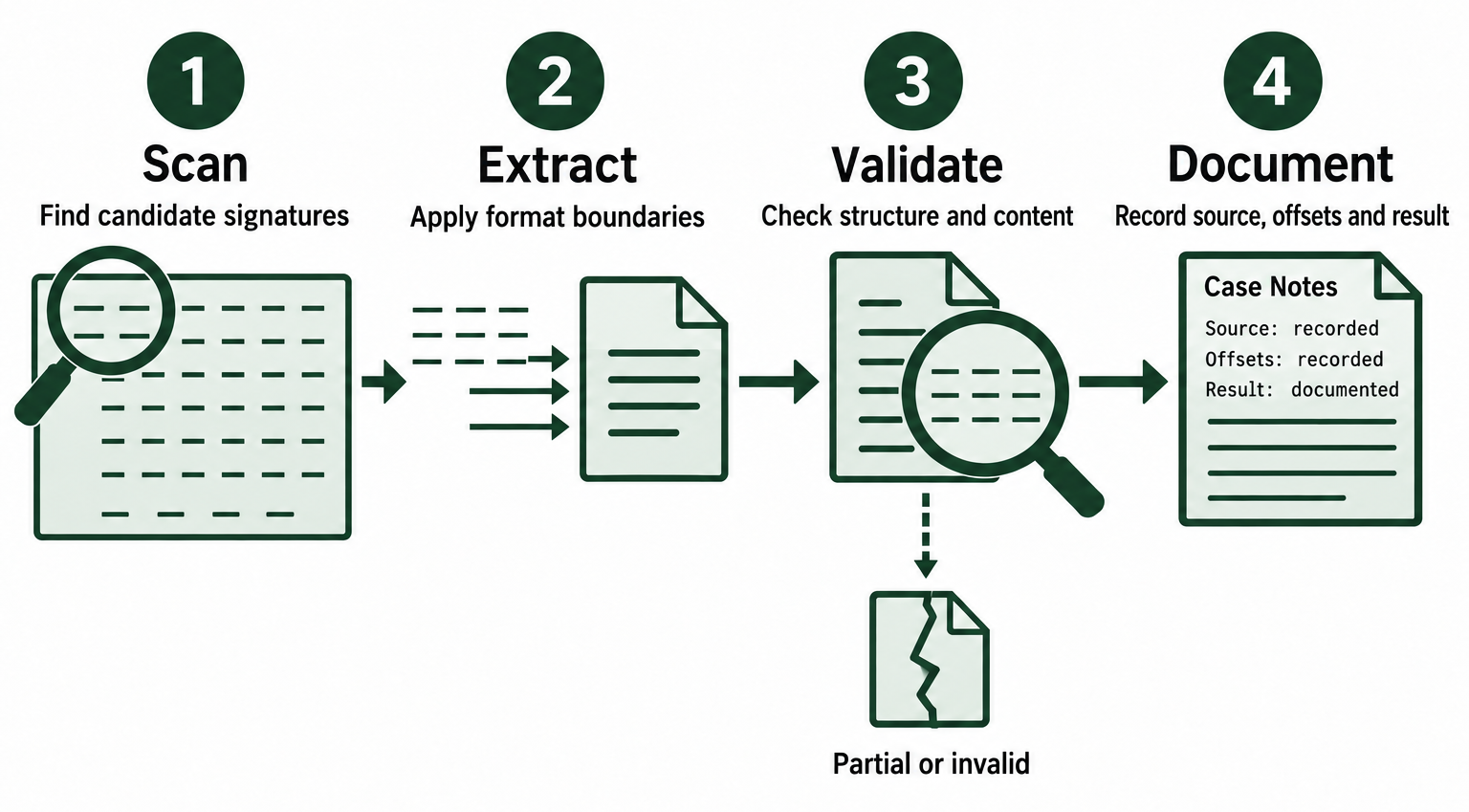
Figure 7.7: Extracted files remain candidates until the analyst checks their structure and content and records the result.
Text description for Figure 7.7
The carver scans the selected input for candidate signatures and extracts byte ranges according to the chosen format rules. Validation then checks each relevant candidate's structure and content. A candidate can be complete, partial, or invalid. Documentation records the input, source offsets, length, tool settings, and validation result so that another examiner can reproduce the recovery.
Scalpel: Configuration and Operation
Scalpel is a command-line carving tool that began as a rewrite of an early version of Foremost, with a focus on speed. It carves only the file types defined in its configuration file, so the analyst controls exactly what it searches for.
On Kali Linux, the default configuration file is /etc/scalpel/scalpel.conf. Every rule in that file is commented out when Scalpel is installed, so Scalpel carves nothing until you remove the # from the rules you need. A common practice is to copy the file into your case folder, enable only the relevant file types, and keep that copy with your case notes. Each rule is one line with five columns:
# extension  case_sensitive  max_size   header                     footer
jpg          y               10000000   \xff\xd8\xff\xe0           \xff\xd9
png          y               10000000   \x89PNG\x0d\x0a\x1a\x0a     IEND\xae\x42\x60\x82
pdf          y               100000000  %PDF                       %%EOF      REVERSE
docx         y               20000000   PK\x03\x04                 PK\x05\x06??????????????????
Each column controls one part of the rule:
- Extension: The extension Scalpel gives each carved file.
- Case sensitive:
yorn. This setting controls whether letters in the header and footer must match in case, which matters for text-based signatures such as%PDF. - Max size: The largest number of bytes Scalpel will carve for this type. If no footer appears within this distance, Scalpel discards the candidate unless you run it with the
-boption. - Header: The byte sequence that marks the start of the file, written as
\xhexadecimal escapes, literal characters, or a mix of both. - Footer: The byte sequence that marks the end of the file. This column is optional. A carved file ends at the last byte of the footer, and a
?matches any single byte.
A rule's extension does not determine what the carved file contains. The DOCX rule above also carves XLSX files, PPTX files, and plain ZIP archives, because all of them begin with PK\x03\x04. Validation identifies which is which.
The basic syntax is:
scalpel -c case_scalpel.conf -o recovery /path/to/image
The -c option names the configuration file, and -o names the output directory. Use a new, empty output directory for each run. The input can be a raw forensic image, an extracted region such as unallocated space, or a device.
Scalpel sorts carved files into subdirectories by rule and writes an audit.txt file in the output directory. The audit file lists each carved file with its starting offset in the input, its length, and whether it was cut off at the maximum size. Scalpel does not test whether carved files open. Validation is the analyst's job.
PhotoRec: Signature Database and Recovery Modes
PhotoRec is a carving tool distributed with TestDisk (on Kali Linux, both are in the testdisk package). It has built-in knowledge of several hundred file formats, so it needs no configuration file. PhotoRec runs in a terminal with a text menu that you navigate with the arrow keys and Enter. A graphical version, QPhotoRec, is also available.
To carve a forensic image, run photorec image.dd. PhotoRec then walks through a series of menus:
- Select the media: Choose the image or device.
- Select the partition: Choose a partition, or the whole disk if no partition table exists.
- Set file options: The File Opt menu enables and disables file types. Deselect types you do not need to speed the scan and reduce noise. The Options menu holds settings such as Paranoid, described below.
- Choose the file system type: Choose ext2/ext3/ext4 for Linux file systems or Other for FAT, NTFS, HFS+, and others. This choice tells PhotoRec how data blocks are laid out.
- Choose the scope: Free scans only unallocated space. Whole scans the entire partition, including allocated files.
- Choose the destination: Select the output folder and press C to confirm. Write output to a different drive than the one being carved.
PhotoRec writes recovered files into numbered folders named recup_dir.1, recup_dir.2, and so on. Each file name begins with f followed by a number that identifies the sector where the file started, such as f0012345.jpg. That number links each recovered file back to its location in the image.
PhotoRec checks the internal structure of many formats as it carves and discards files that fail. This reduces clutter, but it also means some fragmented files are filtered out without notice. The Paranoid option controls this checking, and its brute-force setting attempts to rebuild fragmented JPEG files at a large cost in scan time. The menu-driven interface is convenient for single cases. For scripted or repeated runs, PhotoRec also accepts its menu choices on the command line through the /cmd option.
Foremost: Built-In Types and Configuration
Foremost is a command-line carver originally developed by the U.S. Air Force Office of Special Investigations. It differs from Scalpel in one practical way: it includes built-in extractors for common types, which you select with the -t option and which need no configuration file. The built-in types include jpg, gif, png, bmp, pdf, ole (legacy Office files), zip (which also covers DOCX, XLSX, and PPTX), rar, exe, and several audio and video formats. For some of these types, the built-in extractors read the format's internal structure to find where the file ends, which is more reliable than a header and footer alone.
foremost -t jpg,pdf,zip -i /path/to/image -o recovery
For types without a built-in extractor, Foremost reads rules from /etc/foremost.conf, or from another file named with -c. Its rules use the same five-column format as Scalpel: extension, case sensitivity, maximum size, header, and footer.
Useful options include:
-T: Add a timestamp to the output directory name, so repeated runs do not collide. Without it, Foremost requires an empty output directory.-q: Quick mode. Foremost searches for headers only at the start of each 512-byte sector.-w: Write the audit file only, without carving any files.
Foremost sorts output into one subdirectory per file type and writes an audit.txt file that lists each recovered file with its offset and size.
Carving from Specific Areas
Unallocated space is the primary target for carving, but analysts sometimes carve from specific regions:
- Unallocated sectors: Freed blocks not yet overwritten. This is where deleted files reside.
- Slack space: The gap between the end of a file and the end of the allocated cluster. Slack space often contains fragments of deleted files or temporary data.
- Swap files: Virtual memory files. On Windows,
pagefile.sysandhiberfil.sysmay contain fragments of deleted files. - Temporary directories: Folders like
C:\Windows\Tempor/tmpoften retain deleted files longer than other areas.
Scalpel and Foremost carve whatever input you give them, so the usual way to limit a carve to one area is to extract that area first. The Sleuth Kit's blkls command extracts unallocated blocks by default, or slack space with -s. The dd command extracts a byte range. For a full disk image, add -o and the partition's starting sector to the blkls command.
blkls image.dd > unalloc.bin
blkls -s image.dd > slack.bin
dd if=image.dd of=first_1GiB.bin bs=1M count=1024
scalpel -c case_scalpel.conf -o recovery_first1GiB first_1GiB.bin
The dd command copies 1,024 blocks of one mebibyte (MiB) each, which is the first gibibyte (GiB) of the image. Analysts use this approach when other evidence, such as file system journal entries, suggests that a deleted file was stored in a specific region. Offsets in the audit file of such a carve are relative to the extracted file, not the original image, so record how each extract was made. The Sleuth Kit's blkcalc command maps block addresses in blkls output back to their addresses in the original image.
7.4 File Fragmentation and Its Impact
How Fragmentation Occurs
A file system allocates space to a file in units called clusters (on FAT and NTFS) or blocks (on ext file systems). When a file is first written, the file system ideally allocates contiguous clusters. However, over time, files are deleted, modified, and re-created. The file system's free space becomes fragmented into small, non-contiguous regions.
When a file is enlarged, the file system may not find enough contiguous free space. Instead, it allocates clusters from different regions of the disk, spreading the file across multiple fragments. The file system maintains a file allocation table (FAT on FAT32 and exFAT) or inode entries (on Ext4, NTFS) that record which clusters belong to which file and in what order. The operating system transparently reassembles fragmented files when the user opens them.
Fragmentation becomes problematic during forensic recovery. If a file is deleted, the file system no longer maintains the chain of clusters that make up the file. The analyst must either:
- Use file system metadata to reconstruct the file (if the metadata is not corrupted).
- Carve the file by signature, which works only if the file is contiguous (or if the carver can detect and bridge fragmentation gaps).
Impact on Carving Success
Contiguous files carve cleanly. If a deleted JPEG was stored in clusters 1000 through 1050 with no gaps, a carver scanning unallocated space will encounter the JPEG header at cluster 1000 and the JPEG footer at cluster 1050. The carved file is complete and correct.
Fragmented files carve incompletely or corruptly. Suppose a DOCX file was stored in clusters 1000-1050, then deleted and fragmented. The first fragment (clusters 1000-1020) remains in place. The second fragment (clusters 1021-1050) is now in a different location due to disk reuse. A carver scanning sequentially encounters the DOCX header (ZIP signature) at cluster 1000 and collects data until it hits the ZIP footer (50 4B 05 06), which it finds at cluster 1020 (the end of the first fragment). The carved file represents only the first fragment and is incomplete. The second fragment remains unrecovered.
Figure 7.8 compares storage order with the logical order of a file.
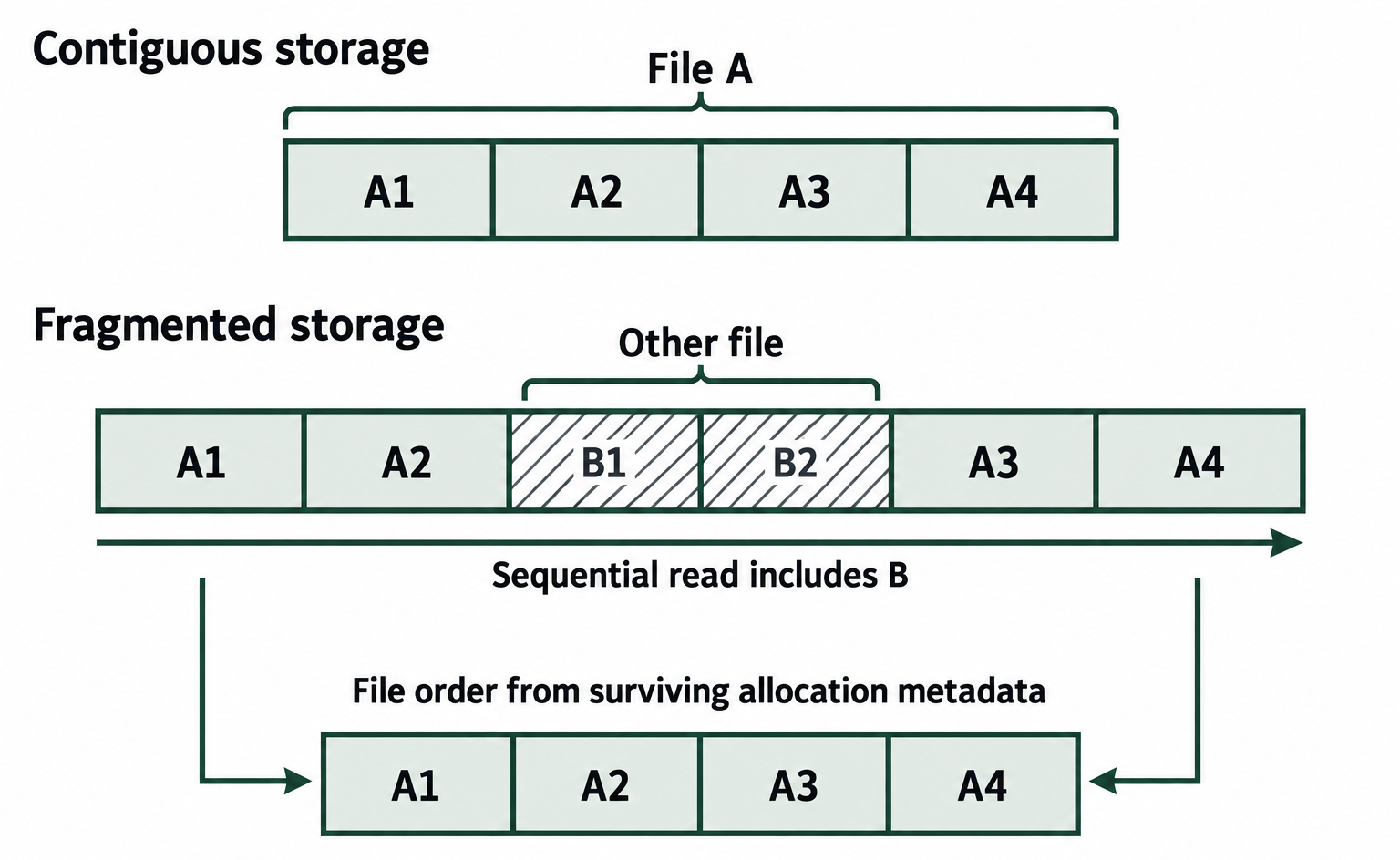
Figure 7.8: Storage order can differ from a file's logical order. This synthetic example shows why reading every intervening block can corrupt a carve.
Text description for Figure 7.8
The contiguous example stores File A as A1, A2, A3, and A4 in adjacent blocks. In the fragmented example, B1 and B2 from another file lie between A2 and A3. A sequential read across that region includes unrelated bytes. If allocation metadata survives and still describes the file accurately, it can direct recovery to A1, A2, A3, and A4 while skipping the B blocks. The diagram depicts an already fragmented layout. Deletion does not itself move the fragments.
Fragmentation Rates by File System
Different file systems exhibit different fragmentation characteristics:
- FAT32 and exFAT: High fragmentation risk. These file systems use a simple linked-list allocation model and do not perform optimization. Over weeks of use, many files become fragmented.
- NTFS: Moderate fragmentation. NTFS includes internal defragmentation heuristics and manages free space more efficiently than FAT, but fragmentation still occurs with heavy disk usage.
- Ext4: Low fragmentation. The ext4 allocator uses extent-based allocation and multi-block allocation, reducing fragmentation in typical scenarios. However, fragmentation increases significantly when the file system approaches capacity.
A forensic analyst should be aware of the target file system when planning carving. A device with a FAT file system may have a higher proportion of fragmented deleted files, making carving less effective than on an Ext4 system.
Bifragment Gap Carving
Bifragment gap carving handles the most common fragmentation case: a file split into exactly two pieces with unrelated data between them. Simson Garfinkel described the technique in 2007 after studying fragmentation on used hard drives.
The process works as follows:
- The carver finds a header and a matching footer, but the bytes between them fail validation.
- It assumes the file is a first fragment that starts at the header and a second fragment that ends at the footer, separated by a gap of unrelated data.
- It tests possible gap positions and sizes. For each candidate, it removes the gap, joins the two fragments, and validates the result.
- It stops when a candidate decodes correctly, and flags that file for manual review.
The method depends on fast validation. A JPEG decoder, for example, can report quickly whether a candidate decodes. The number of candidates grows with the distance between header and footer, so the technique works best when the two fragments are close together.
Tool support is limited. Scalpel and Foremost carve only the contiguous bytes between a header and a footer, and they do not reassemble fragments. PhotoRec's brute-force setting attempts this for JPEG files. Research carvers and some commercial suites implement fuller reassembly. Bifragment gap carving cannot help a file split into three or more fragments, and it cannot recover a fragment that has been overwritten. For complex formats such as PDFs with cross-reference tables, missing data renders the file unrecoverable even if the remaining fragments are joined.
Analyst Perspective
When carving recovers thousands of files, some will be fragmented. A common workflow is to carve all files first, then prioritize validation and reconstruction. Pair signature carving with file system analysis in The Sleuth Kit or Autopsy, described under smart carving below. File system analysis recovers deleted files whose allocation information still exists, including fragmented ones, and carving covers files whose metadata is gone. Using both recovers files that either method would miss alone.
Figure 7.9 shows how a two-fragment reconstruction tests a gap hypothesis.
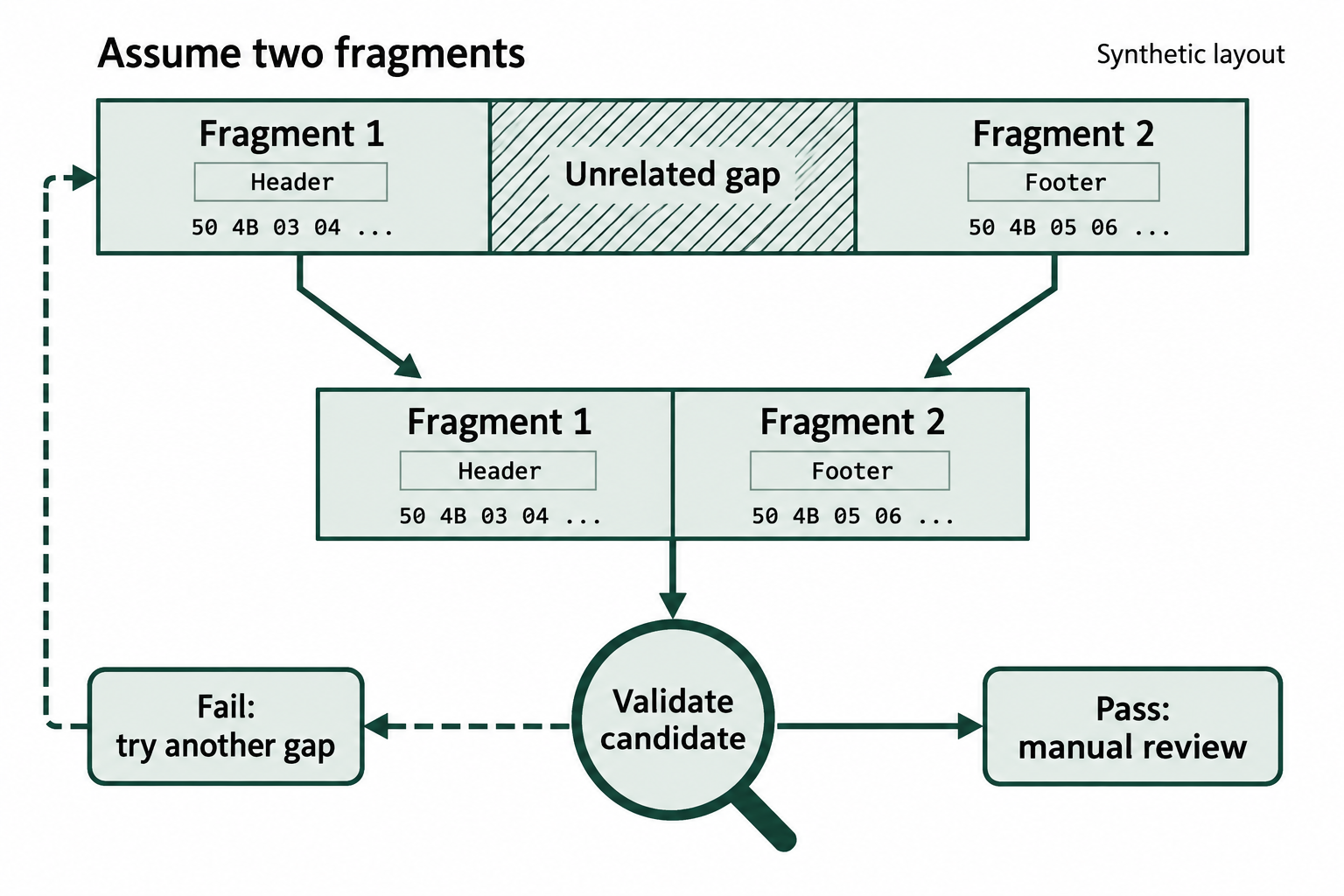
Figure 7.9: A valid decoding result supports further review of a reconstruction. Failed candidates require another gap hypothesis.
Text description for Figure 7.9
The method assumes two file fragments in order, with unrelated bytes between them. A candidate reconstruction joins the first fragment, which includes the header, to the second fragment, which includes the footer. Validation rejects candidates with unsuitable boundaries. The carver can then try another gap position or size. A passing candidate goes to manual review. This model cannot recreate overwritten bytes and does not guarantee that a successful decode identifies the unique original file. The illustrative ZIP markers are 50 4B 03 04 and 50 4B 05 06. Ellipses omit the remaining record bytes.
Smart Carving and File System Metadata
Smart carving leverages file system metadata to improve recovery of fragmented files. If the file system's inode or Master File Table (MFT) is partially recoverable, it contains the original file allocation chains. By combining this metadata with carved signatures, analysts can reconstruct fragmented files.
For example, on an Ext4 system, the inode stores extent information. If the inode for a deleted file is still present, an analyst can read the inode to determine which blocks originally belonged to the file, then extract those specific blocks and reassemble them in the correct order. This approach is far more reliable than blind carving when metadata is available.
Tools like Sleuth Kit (TSK) and Autopsy integrate file system analysis with carving. They parse file system metadata first, then use carving as a fallback for files where metadata is corrupted or missing.
Validation Through Internal Structure
After carving, every recovered file must be validated. Do not assume that a file is correct simply because it has a valid header and footer.
Validation involves examining the file's internal structure:
- JPEG: Open the file in an image viewer or use tools like
exiftoolto verify EXIF data is present and uncorrupted. Check for truncation by looking for signs of incomplete image data. - PDF: Use tools like
pdfinfoor manually parse the cross-reference table to verify the PDF structure is intact. A fragmented PDF may have a valid header and footer but broken page tree or corrupted page objects. - ZIP (DOCX, XLSX, PPTX): Unzip the file and verify the internal XML structure is valid. Open the document in the appropriate application to confirm it displays correctly.
- Legacy Office (DOC, XLS, PPT): Open the file in the matching application or in LibreOffice and confirm that the content displays completely.
Critical Validation Step
A file that opens without error is not guaranteed to be correct. A fragmented DOCX file might open in Microsoft Word but display corrupted text or missing images. Always compare the recovered file against known-good examples or the user's description of what the file should contain. In court, chain of custody requires documenting not just that you recovered a file, but that you verified its integrity.
7.5 File Metadata Extraction
EXIF in Digital Images
EXIF (Exchangeable Image File Format) is a standardized metadata format embedded in image files, particularly JPEGs. EXIF data records information about when and how a photo was taken, where it was taken, and what device captured it.
Common EXIF fields include:
- DateTimeOriginal: The date and time the photo was taken (from the device's clock).
- DateTimeDigitized: The date and time the photo was digitized (if scanned).
- CameraModel: The exact model of the camera.
- LensMake and LensModel: Details about the lens (if recorded).
- GPS Latitude, Longitude, Altitude: Precise location where the photo was taken (if GPS was enabled).
- Orientation: Whether the image was rotated or flipped.
- ThumbnailImage: A small preview image embedded in the EXIF.
- Software: The software used to process the image.
EXIF timestamps are critical forensic evidence. They establish when a photo was taken, independent of file system timestamps. If a suspect claims to have been in a different location at the time of an incident, EXIF GPS coordinates can contradict that claim. Conversely, if EXIF data has been modified or stripped, the absence of data is itself evidence.
A compromised scenario: A suspect claims to have taken a photo on a trip to City A on March 15. But EXIF data shows the photo was taken in City B on March 10, using a camera registered to a different person. This discrepancy is investigatively significant.
Office Document Metadata
Microsoft Office documents (Word, Excel, PowerPoint) embed metadata in an XML-based format called Open Packaging Convention. This metadata includes:
- Author: The user account that created the document.
- Company: The organization associated with the user.
- LastModifiedBy: The user who last edited the document.
- Created and Modified timestamps: Precise times the document was created and last saved.
- Revision history: The number of times the document has been saved (in older formats).
When a user opens a Word document and begins editing, Word records the user account from the system's user profile. If a suspect claims not to have created a document, but the Author field shows the suspect's username, that is strong evidence to the contrary.
Additionally, many Office documents store hidden metadata like previous authors' names (if the document was shared and edited by multiple people) and template information.
Analyst Perspective
In a case involving a leaked internal memo, you recovered a DOCX file from unallocated space. The memo was ostensibly written by the company CEO, but the document's core properties show the administrative assistant's user name in both the Author and Last Modified By fields. The assistant edited the document multiple times, and the final timestamps show edits the night before the memo was leaked to the press. This timeline of modifications, corroborated by metadata, is more persuasive than the memo's nominal author.
PDF Metadata
PDFs store metadata in a data structure called the Document Information Dictionary. This includes:
- Title: The document's title.
- Author: The person or application that created the PDF.
- Producer: The software that generated the PDF (e.g., Adobe Acrobat, Microsoft Word).
- CreationDate and ModDate: When the PDF was created and last modified.
Some PDFs also contain document properties that record whether the document was password-protected, encrypted, or digitally signed.
Additionally, PDFs maintain an internal revision history. Each time a PDF is opened and resaved, the tool may append a new version to the end of the file. A forensic analyst examining a PDF's internal structure (cross-reference table) may discover multiple versions and extract information about changes made across those revisions.
Tools for Metadata Extraction
ExifTool (by Phil Harvey) is the de facto standard for extracting EXIF and other metadata from image files. The basic syntax is:
exiftool filename.jpg
This outputs all EXIF data in a human-readable format. ExifTool supports batch processing:
exiftool *.jpg
ExifTool also allows extraction of specific fields:
exiftool -GPSLatitude -GPSLongitude filename.jpg
FOCA (Fingerprinting Organizations with Collected Archives) is a Windows-based tool that extracts metadata from multiple document types (Office, PDF, images). FOCA can process entire folders of documents and correlate metadata across files, highlighting patterns (e.g., all documents created by the same user account, all documents modified on the same date).
mat2 (Metadata Anonymization Toolkit) is an open-source tool for both extracting and removing metadata. While often used to sanitize documents, it is also useful for forensic metadata inspection:
mat2 --show filename.pdf
Metadata as Evidence
Metadata is frequently the pivotal evidence in a case. Metadata establishes:
- Authorship: Who created or modified a document.
- Timeline: When documents were created, modified, accessed.
- Location: GPS data embedded in images pinpoints where they were taken.
- Relationships: Multiple documents with the same author and creation date indicate they were produced as a batch.
- Intent: A document titled "Backup Plan" created at 11 PM on the night of the alleged incident suggests premeditation.
However, metadata can be misleading or false. An attacker can:
- Modify metadata manually using hex editors or specialized tools.
- Strip metadata from files before sharing them.
- Spoof GPS coordinates using location spoofing apps.
A competent analyst always corroborates metadata findings with other evidence (file system timestamps, network logs, eyewitness testimony).
Figure 7.10 connects recorded metadata to corroboration and a qualified finding.
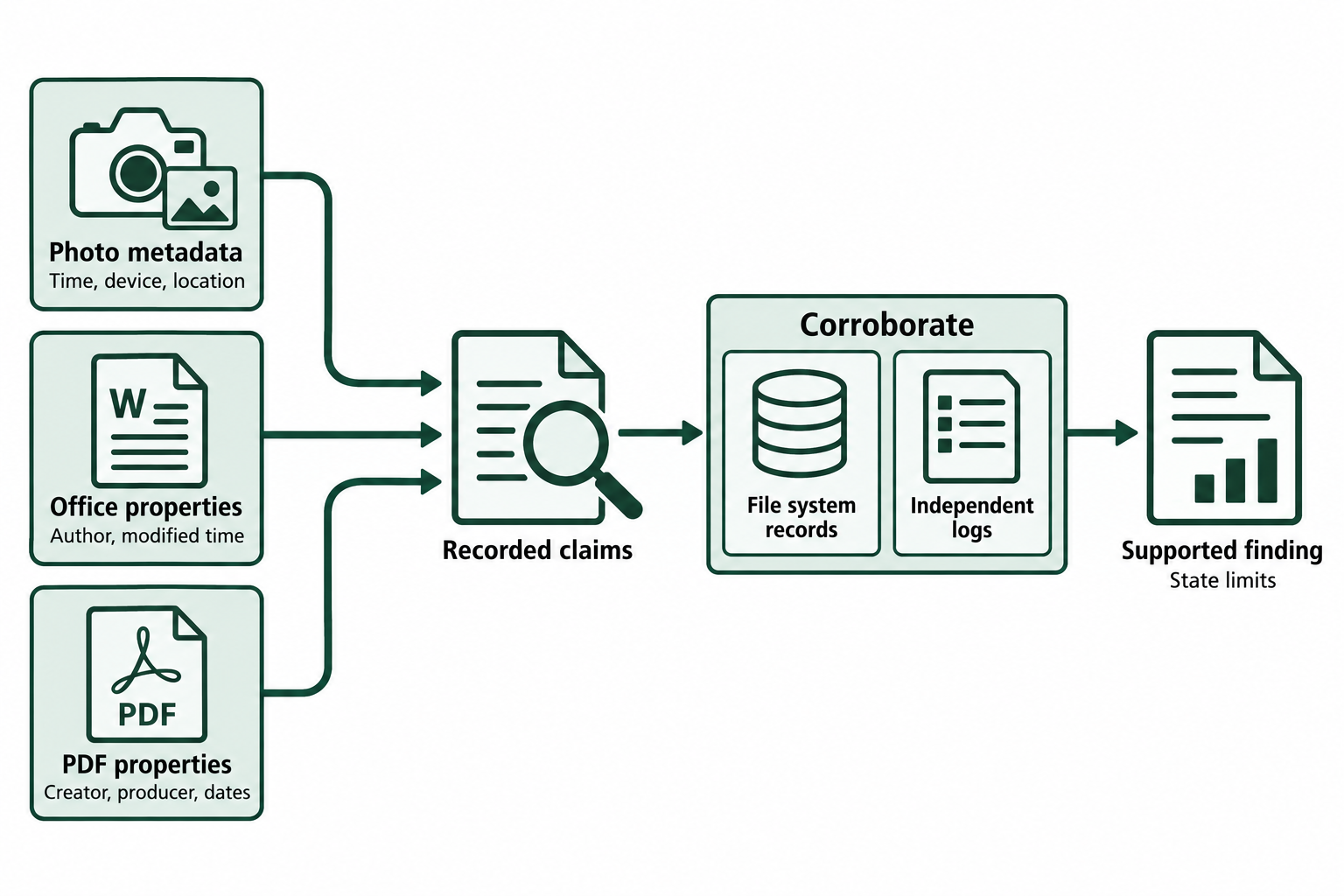
Figure 7.10: Metadata can guide an investigation. Corroboration tests whether recorded names, dates, and locations support the proposed interpretation.
Text description for Figure 7.10
Photo metadata may record a device, a capture time, and a location. Office and PDF properties may record author or application names and dates. Treat these fields as claims stored in the file: settings, clocks, copying, editing, and software behavior can affect them. Compare relevant values with file system records and independent logs. Report what the combined evidence supports and identify unresolved conflicts. A name field alone does not establish which person operated the device, and a timestamp alone does not establish intent.
Putting It Together: A Carving and Validation Scenario
You are examining a forensic image from a laptop belonging to a suspect in a data theft case. You need to recover deleted photos and documents to establish a timeline of suspicious activity.
Step 1: Acquire the image and identify file systems.
You acquire the laptop's C: drive using FTK Imager, producing a raw forensic image (image.dd). You identify the file system as NTFS using fsstat from Sleuth Kit.
Step 2: Carve for relevant file types. You copy the Scalpel configuration file into your case folder and enable the rules for JPEG, PNG, DOCX, and PDF. To avoid recovering files that are still allocated and already accessible, you extract the unallocated space first and carve only that:
blkls image.dd > unalloc.bin
scalpel -c case_scalpel.conf -o recovery unalloc.bin
The carving completes and recovers 342 JPEG files, 89 PNG files, 156 DOCX files, and 34 PDF files.
Step 3: Validate a sample of carved files. You randomly select 10 JPEG files from the recovery folder. For each:
- Open the file in an image viewer. All 10 display correctly.
- Run
exiftoolon each. All 10 have EXIF data with camera model and GPS coordinates. The dates range from March 2024 to January 2025. - Visually inspect one in a hex editor, as described in Section 7.2. The file structure is intact, with proper JPEG headers and footers.
Confidence in carving results is high.
Step 4: Prioritize by temporal and content relevance. The incident occurred on August 15, 2024. You filter the recovered JPEGs by EXIF date, identifying 23 photos taken between August 10-20, 2024. You extract GPS coordinates and map them. Several photos were taken at the office on August 15 around 11 PM, two hours after the office officially closed and the alleged data theft occurred.
Step 5: Extract metadata from recovered documents. You run a batch extract of metadata from all 156 recovered DOCX files:
exiftool -r -ext docx recovery > metadata_extract.txt
You find that 12 DOCX files were created by the suspect's account on August 15, 2024, between 10 PM and 11:30 PM. File titles include "Data_Export_Aug15.docx" and "Vendor_List_2024.docx".
Step 6: Validate critical documents. You unzip "Data_Export_Aug15.docx" to inspect its content:
unzip Data_Export_Aug15.docx -d docx_extracted/
cat docx_extracted/word/document.xml | grep -i "vendor" | head -5
The document contains a list of 200+ vendor names and contact information matching entries from the company's confidential database. The document's core properties (docProps/core.xml) show a revision number of 8, with creation and last-modified times 90 minutes apart on August 15.
Conclusion: Carving recovered evidence that corroborates the theory that the suspect accessed the database, exported proprietary vendor information, and prepared documents for unauthorized transmission. The timeline (late evening on the day of the incident), the metadata (suspect's account), and the content (confidential data) together establish probable cause for further investigation.
Chapter Summary
- File signatures (magic bytes) are fixed byte sequences that uniquely identify file types, independent of file extensions. Common signatures include FF D8 FF for JPEG, 89 50 4E 47 for PNG, and 25 50 44 46 for PDF. Signatures are reliable forensic identifiers; extensions are not.
- Manual carving with a hex editor follows the same logic as automated carving: find the header, find the footer, calculate the starting and ending offsets, select that block, and save it as a new file. Hex editors such as HxD (Windows), Hex Fiend (macOS), GHex (Linux), and ImHex (all three) also reveal a renamed file's true type through its signature and let an analyst restore an altered header on a working copy, in overwrite mode, with every change documented.
- Signature-based file carving scans unallocated space for file headers, extracts data until a footer signature is found, and recovers deleted files. Scalpel, Foremost, and PhotoRec are widely used open-source carvers, and Scalpel and Foremost accept custom rules in a configuration file.
- File fragmentation occurs when a file system allocates non-contiguous clusters to a file. Fragmented deleted files carve incompletely unless bifragment gap carving or file system metadata reconstruction is applied. FAT systems exhibit higher fragmentation rates than NTFS or Ext4.
- File metadata (EXIF, Office, PDF properties) embeds author, creation timestamps, GPS location, and other evidence directly in files. Metadata extraction tools like ExifTool and FOCA are essential for timeline establishment and authorship analysis.
- Validation after carving requires opening recovered files, inspecting internal structure, and verifying content integrity. A file with a valid header and footer may still be fragmented or corrupted; always examine the actual data.