CH11: Web Browser Forensics
Introduction
The previous chapter introduced PowerShell as both a forensic instrument and an attacker weapon, giving us command-line access to Windows artifacts that would otherwise require manual navigation. Now we turn to the application that generates more forensic evidence about user intent than any other program on the system: the web browser.
Operating system artifacts tell us what happened on a computer. File system timestamps, Prefetch data, and Registry keys prove that programs executed and files were accessed. But the web browser tells us why. It captures the searches a user conducted, the sites they visited, the files they downloaded, the credentials they saved, and the forms they filled out. In investigations ranging from corporate fraud to data theft to policy violations, browser artifacts are frequently the evidence that establishes motive, planning, and execution.
This chapter examines how modern browsers store data at the file and database level, how to extract and interpret that data using both manual and automated tools, and what challenges emerge when users attempt to conceal their browsing activity through private modes, alternative browsers, or anonymization tools. The focus throughout is on structured, repeatable analysis that would hold up to scrutiny in both corporate proceedings and courtroom testimony.
Learning Objectives
By the end of this chapter, you will be able to:
- Map the complete artifact storage structure for Chromium-based browsers and Mozilla Firefox, including database files, JSON configurations, and local storage directories.
- Query browser SQLite databases using DB Browser for SQLite to extract, filter, and interpret forensic evidence from history, downloads, cookies, and autofill tables.
- Decode WebKit and UNIX timestamps to establish accurate forensic timelines from raw browser database values.
- Evaluate the forensic implications of private browsing modes, AI-integrated browsers, and the TOR Browser to determine what artifacts persist and what gaps remain.
- Apply a structured browser forensic workflow using triage tools, manual database analysis, and commercial parsers to reconstruct user activity in an investigation scenario.
11.1 What Is Browser Forensics and Why Does It Matter?
Browser forensics is the disciplined process of locating, acquiring, and analyzing the artifacts produced by web browsers installed on a target system. Browsers generate a remarkably dense record of user behavior because they are designed to enhance the user experience through memory: remembering passwords so users don't have to retype them, caching images so pages load faster, storing history so users can return to sites they visited last week. Every one of these convenience features creates a forensic artifact.
The Evidentiary Value of Browser Data
Browser artifacts answer three fundamental investigative questions:
- What did the user access? History records, cached content, and download logs establish a factual record of the websites, files, and services a user interacted with.
- When did they access it? Timestamps embedded in browser databases allow examiners to place specific activity within a timeline, down to the microsecond in some cases.
- Did they know what they were doing? Fields like
typed_countdistinguish between URLs that a user deliberately typed into the address bar versus URLs that were simply loaded by the browser as part of a redirect or automated process. This distinction is critical to establishing mens rea, the legal concept of criminal intent.
Relevance Across Investigation Types
- Law Enforcement: In cases involving the distribution of contraband material, browser history can establish that a suspect actively searched for, navigated to, and downloaded specific files. In fraud investigations, browsing history may show research into money laundering techniques or contact with co-conspirators through webmail.
- Corporate/Insider Threat: Browser artifacts can reveal that an employee exfiltrated data through a personal cloud service (Dropbox, Google Drive), conducted job searches on company time, or communicated with a competitor through a web-based email service.
- Incident Response: During a malware investigation, the browser history may reveal the initial infection vector, the specific URL where a malicious download or drive-by exploit originated.
11.2 The Browser Artifact Landscape
Every time a user opens a web browser, the application generates a trail of structured data: URLs visited, files downloaded, cookies set, form fields populated, passwords saved, and pages cached. This data is stored in well-defined file locations on the local disk. Understanding where these files live and what they contain is the foundation of browser forensics.
Two Engines, One Approach
The modern browser market is dominated by two rendering engines. Chromium, developed by Google as an open-source project, powers Google Chrome, Microsoft Edge, Brave, Opera, and Vivaldi. Gecko, developed by Mozilla, powers Firefox. From a forensic perspective, this simplifies the landscape considerably: if you know how to analyze Chrome, you can analyze any Chromium-based browser because they all share the same underlying storage architecture. Firefox requires a separate but parallel analysis approach.
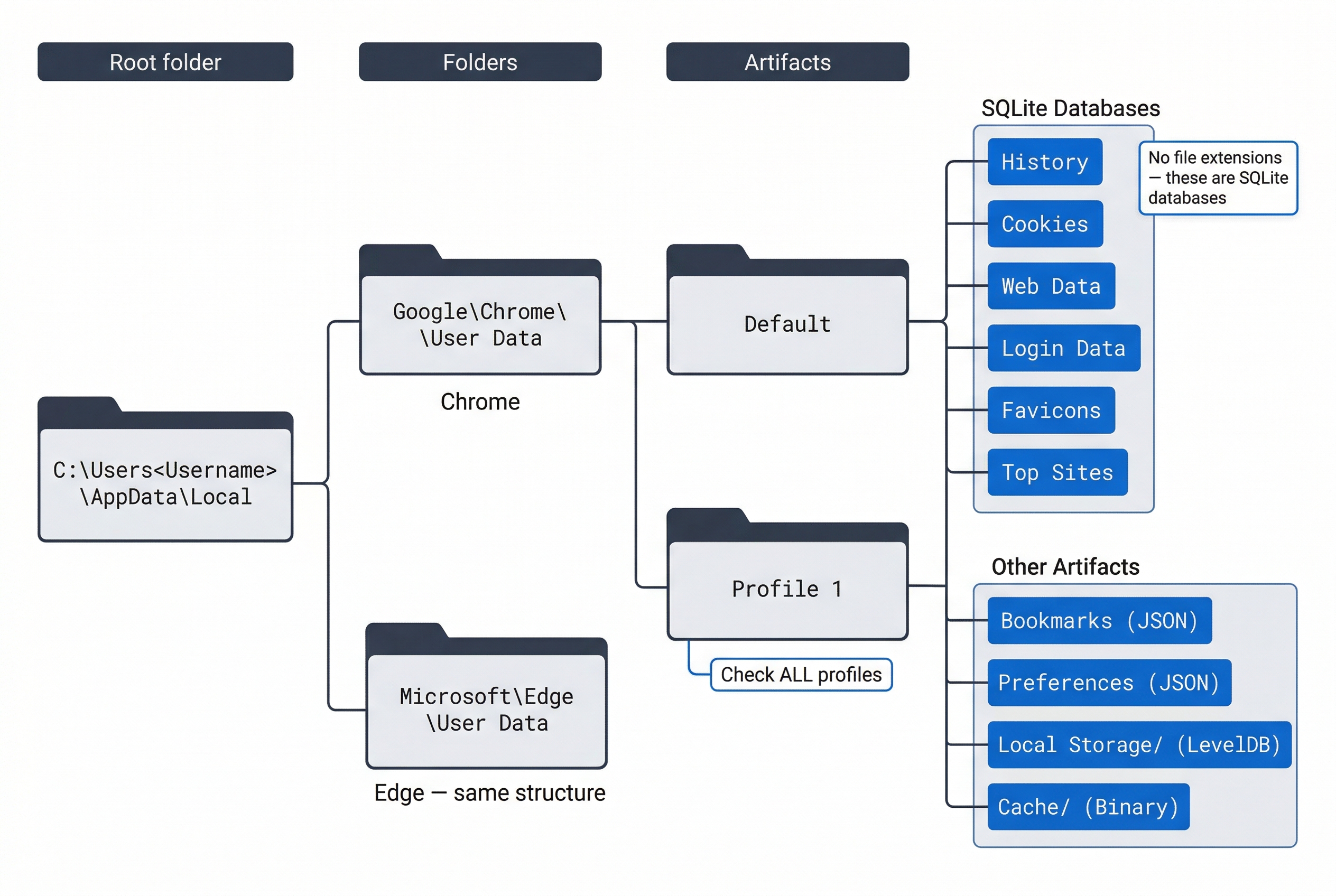
Chromium Artifact File Map
All Chromium-based browsers store their user data in a profile directory. The default profile is named Default, but users can create additional profiles (named Profile 1, Profile 2, etc.), each with its own complete set of artifacts. Every profile must be analyzed independently.
The base path for Chrome on Windows is:
C:\Users\<Username>\AppData\Local\Google\Chrome\User Data\Default\
For Microsoft Edge, replace Google\Chrome with Microsoft\Edge. For Brave, the path uses BraveSoftware\Brave-Browser.
| Artifact File | Type | Forensic Value |
|---|---|---|
History |
SQLite database | URLs visited, visit counts, typed counts, download records, keyword searches |
Cookies |
SQLite database | Session tokens, authentication cookies, tracking data, site preferences |
Web Data |
SQLite database | Autofill form entries, saved addresses, saved credit card metadata |
Login Data |
SQLite database | Saved usernames and encrypted passwords (DPAPI-protected) |
Bookmarks |
JSON file | Bookmarked URLs with folder structure and timestamps |
Preferences |
JSON file | Browser configuration, default search engine, homepage settings |
Local Storage/ |
LevelDB directory | Per-site key-value data stored by web applications |
Session Storage/ |
LevelDB directory | Temporary per-tab data (cleared when tab closes) |
IndexedDB/ |
LevelDB directory | Structured client-side databases used by web applications |
Cache/ |
Binary cache files | Cached copies of images, scripts, HTML, and other web resources |
Favicons |
SQLite database | Site icons, useful for confirming which sites were visited |
Extensions/ |
Directory tree | Installed browser extensions, their configurations and local data |
Top Sites |
SQLite database | Frequently visited sites shown on the new tab page |
Warning
Chromium artifact files have no file extensions. A file named History is a SQLite database, but it will not have a .db or .sqlite extension. Forensic tools recognize them by content, but if you are navigating manually, do not be confused by the lack of extensions.
Firefox Artifact File Map
Firefox stores its profile data in a randomly named directory under:
C:\Users\<Username>\AppData\Roaming\Mozilla\Firefox\Profiles\<random>.default-release\
The random prefix (e.g., a1b2c3d4.default-release) means you cannot predict the exact path. During acquisition, identify all directories under Profiles\ and examine each one.
| Artifact File | Type | Forensic Value |
|---|---|---|
places.sqlite |
SQLite database | Browsing history (moz_places, moz_historyvisits) and bookmarks |
cookies.sqlite |
SQLite database | Cookies with host, path, expiry, and creation timestamps |
formhistory.sqlite |
SQLite database | Autofill data from web forms |
logins.json |
JSON file | Saved usernames and encrypted passwords |
key4.db |
SQLite/PKCS#11 database | Master encryption key for saved passwords |
sessionstore.jsonlz4 |
Compressed JSON | Open tabs, recently closed tabs, form data from active sessions |
extensions.json |
JSON file | Installed extensions and their metadata |
webappsstore.sqlite |
SQLite database | Local storage data for websites |
content-prefs.sqlite |
SQLite database | Per-site preferences (zoom level, permissions) |
permissions.sqlite |
SQLite database | Site-specific permission grants (camera, microphone, notifications) |
Browser Profiles: A Commonly Missed Detail
Both Chromium and Firefox support multiple user profiles within a single browser installation. A user might maintain a "Work" profile and a "Personal" profile, each with completely separate history, cookies, and saved credentials. During acquisition, enumerate all profiles. Analyzing only the default profile and missing a secondary profile where the relevant activity occurred is a preventable mistake.
11.3 How Browsers Store Data: SQLite Fundamentals
Nearly every browser artifact of forensic value is stored in a SQLite database. Understanding what SQLite is and how to query it is essential for browser forensics.
What Is SQLite?
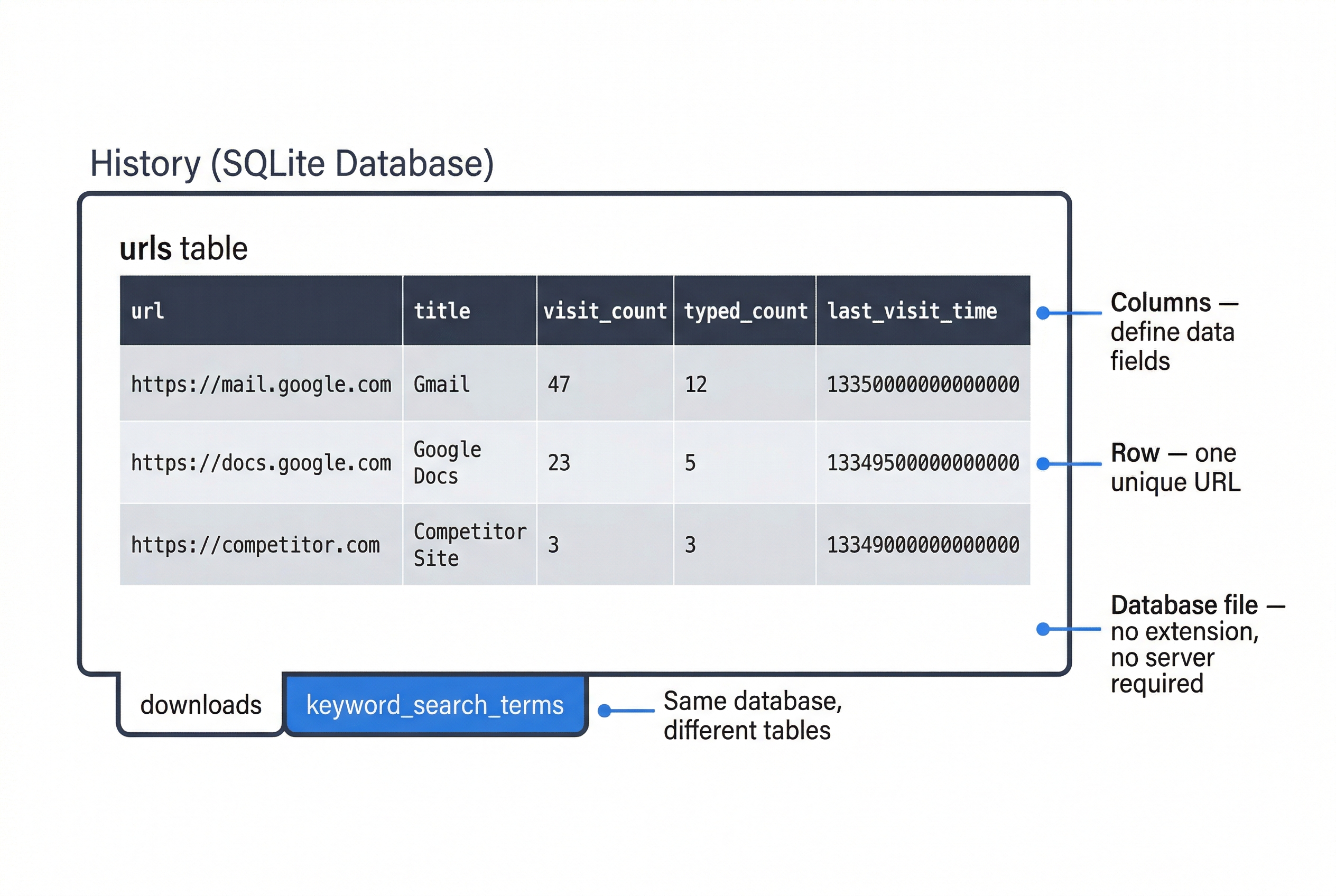
SQL stands for Structured Query Language. It is the standard language for interacting with databases: asking questions, inserting data, updating records, and deleting entries. SQLite is a lightweight, file-based database engine. Unlike enterprise database systems (SQL Server, PostgreSQL, Oracle) that run as background services on a network, a SQLite database is a single file on disk. No server is required. The application (in this case, the browser) reads from and writes to the file directly.
This has a critical forensic implication: you do not need the browser installed to read its data. You can copy a History file to your forensic workstation and open it with any SQLite-compatible tool.
SQLite Structure: Tables, Columns, and Rows
A SQLite database is organized into tables. Each table stores a specific category of data. For example, Chrome's History database contains tables named urls, visits, downloads, downloads_url_chains, keyword_search_terms, and others.
Each table has columns that define the data fields (URL, title, visit count, timestamp) and rows that represent individual records. One row in the urls table represents one unique URL the user visited.
Core SQL Queries for Forensic Analysis
The fundamental SQL command for forensic work is SELECT, which retrieves data from a table. The basic structure is:
SELECT column1, column2 FROM table_name;
To retrieve all browsing history from Chrome:
SELECT url, title, visit_count, typed_count, last_visit_time
FROM urls;
Filtering with WHERE narrows results to specific criteria. To find only URLs the user typed manually (indicating deliberate intent rather than clicking a link):
SELECT url, title, visit_count, typed_count
FROM urls
WHERE typed_count > 0;
Sorting with ORDER BY arranges results chronologically or by frequency:
SELECT url, title, visit_count, last_visit_time
FROM urls
ORDER BY last_visit_time DESC;
This returns the most recently visited URLs first.
Combining Filters uses AND and OR:
SELECT url, title, visit_count
FROM urls
WHERE typed_count > 0 AND visit_count > 5
ORDER BY visit_count DESC;
This returns sites the user both typed manually and visited more than five times, sorted by frequency. These are sites the user intentionally and repeatedly accessed.
Joining Tables
Some forensic questions require data from more than one table. For example, Chrome stores the file path of a download in the downloads table and the source URL in downloads_url_chains. To see both together, you use a JOIN:
SELECT d.target_path, d.start_time, d.total_bytes, u.url
FROM downloads d
JOIN downloads_url_chains u ON d.id = u.id;
This connects each downloaded file to the URL it came from. Joins are powerful but the syntax can be complex. For this course, focus on understanding why joins are needed (data is split across tables) and recognize the pattern. Commercial forensic tools perform these joins automatically.
Analyst Perspective
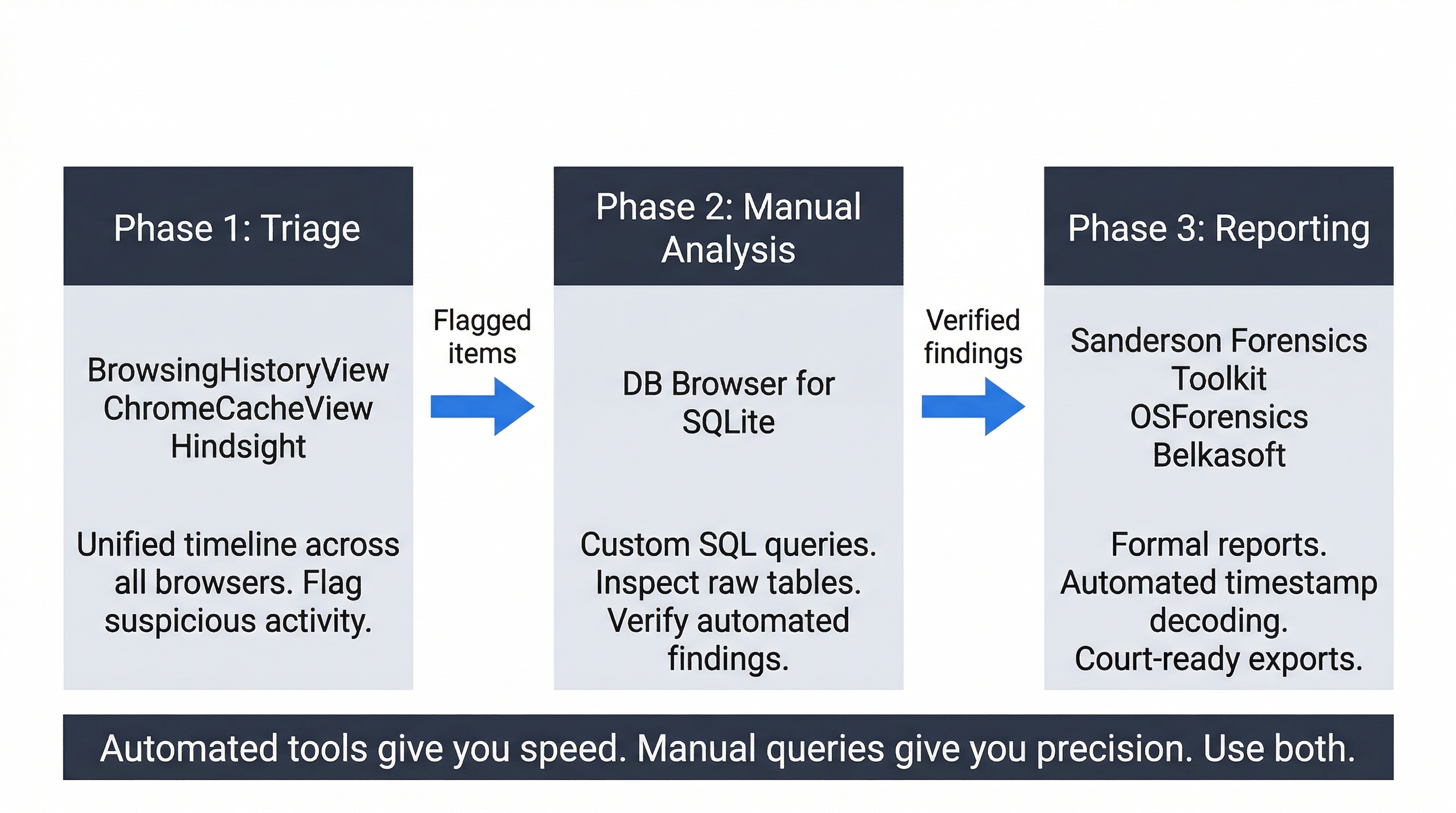
In practice, you will use a combination of automated tools for initial triage and manual SQL queries for targeted follow-up. When a tool like Hindsight flags a suspicious download, you might open DB Browser and write a custom query to pull all downloads from the same domain, or to check whether the same URL appears in the keyword search terms. The automated tool gives you speed; the manual query gives you precision.
11.4 Manual Analysis with DB Browser for SQLite
DB Browser for SQLite is a free, open-source tool that provides a graphical interface for opening, browsing, and querying SQLite databases. It is the primary manual analysis tool for browser forensics.
Opening a Browser Database
To analyze a Chrome History file:
- Launch DB Browser for SQLite.
- Click Open Database and navigate to the acquired
Historyfile. - If the file has no extension, you may need to change the file type filter to "All files" to see it.
Once opened, three tabs matter for forensic work:
- Database Structure shows the schema: every table, its columns, and their data types. Always check this first to understand what data is available. Browser developers change schemas between versions, so column names you expect may have been renamed or moved.
- Browse Data provides a spreadsheet-like view of any selected table. Use the dropdown to switch between tables (
urls,downloads,keyword_search_terms, etc.). The filter row at the top of each column lets you search for specific values without writing SQL. - Execute SQL is where you write and run custom queries. Paste or type a query, click the play button, and review the results.
Key Tables to Examine
When analyzing a Chromium History database, start with these tables:
The urls table contains one row per unique URL visited. Key columns:
url: The full URL string.title: The page title as displayed in the browser tab.visit_count: Total number of visits to this URL.typed_count: Number of times the user typed this URL directly into the address bar. A value greater than zero indicates deliberate navigation, which can establish intent.last_visit_time: A WebKit timestamp (more on decoding below).
The visits table contains one row per individual visit event. A single URL visited ten times produces one row in urls and ten rows in visits. Key columns include visit_time and transition, which records how the user arrived at the page (typed, link click, form submission, reload).
The downloads table records every file the user downloaded, including the target save path, file size, start and end times, and the referring URL.
The keyword_search_terms table captures search queries entered into the address bar (which doubles as a search box in modern browsers). This table directly reveals what the user was searching for.
Handling WAL Files
SQLite uses a mechanism called Write-Ahead Logging (WAL) to improve performance. Recent writes may be stored in a companion file named History-wal rather than in the main History database. If you acquire only the History file and leave behind the -wal and -journal files, you may be analyzing stale data that is missing the most recent activity.
Warning
Always acquire the main database file and its accompanying -wal and -journal files together. Without the WAL file, your analysis may be missing the most recent browsing activity, which is often the activity most relevant to the investigation.
Commercial Alternatives
For environments where speed and reporting matter, commercial tools can parse browser databases automatically. Sanderson Forensics' SQLite Forensic Toolkit is purpose-built for forensic SQLite analysis: it reads browser databases, automatically decodes timestamps, and generates exportable reports. Hindsight (open-source, Python-based) specifically targets Chromium browsers and produces timeline-based Excel output. Both tools handle the joins, timestamp conversions, and schema variations that make manual analysis time-consuming. The trade-off is that automated tools show you what they are designed to find. Manual analysis with DB Browser lets you look at anything in the database, including tables and columns that automated tools may not parse.
11.5 Decoding Browser Timestamps
Raw timestamp values in browser databases are stored as large integers that are not human-readable. Decoding them accurately is essential for building a forensic timeline.
WebKit Timestamps (Chromium Browsers)
Chrome, Edge, and all Chromium-based browsers store timestamps as the number of microseconds since January 1, 1601, 00:00:00 UTC. This is the same epoch used by Windows FILETIME, but expressed in microseconds rather than 100-nanosecond intervals.
A typical value looks like: 13350000000000000
To convert manually:
- Divide by 1,000,000 to get seconds since 1601.
- Subtract 11,644,473,600 (the number of seconds between January 1, 1601 and January 1, 1970) to get a UNIX timestamp.
- Convert the UNIX timestamp to a human-readable date.
In practice, use a conversion tool:
- EpochConverter (epochconverter.com): Supports WebKit/Chrome timestamp conversion directly under the "Chrome/WebKit Timestamp" section.
- CyberChef (gchq.github.io/CyberChef): Use the "From UNIX Timestamp" recipe after performing the math, or chain operations to handle the full conversion.
- DB Browser built-in: You can embed the conversion directly in a SQL query using
datetime(), though the syntax can be cumbersome for WebKit values.
UNIX/Firefox Timestamps
Firefox stores timestamps in places.sqlite as microseconds since January 1, 1970, 00:00:00 UTC (the UNIX epoch). This is simpler than WebKit but still requires division by 1,000,000 to reach seconds before conversion.
A typical Firefox value looks like: 1679000000000000
Divide by 1,000,000 to get 1679000000, then convert using EpochConverter or CyberChef.
Timestamp Reference
| Browser Family | Epoch | Unit | Example Raw Value | Conversion |
|---|---|---|---|---|
| Chromium (Chrome, Edge, Brave) | January 1, 1601 | Microseconds | 13350000000000000 | Divide by 1M, subtract 11644473600, convert UNIX |
| Firefox | January 1, 1970 | Microseconds | 1679000000000000 | Divide by 1M, convert UNIX |
Analyst Perspective
Always verify your decoded timestamps against known events. If the investigation timeline says the user was on vacation during a specific week, but your decoded browser timestamps show heavy activity during that period, either your conversion is wrong or the user was not actually away. Cross-reference browser timestamps with file system timestamps ($MFT, $USN Journal) and Windows Event Logs to corroborate your findings.
11.6 Beyond History: Cookies, Autofill, and Local Storage
The core artifacts (history, downloads, cache) get the most attention, but several other browser data stores carry significant forensic value.
Cookies
Cookies are small data files that websites store in the browser to maintain session state, track user behavior, and remember preferences. Forensically, cookies prove that a user interacted with a specific website and can reveal:
- Authentication state: A session cookie for
mail.google.comproves the user was logged into a Gmail account. The cookie's creation timestamp shows when the session began. - Shopping and transaction activity: E-commerce cookies may contain cart contents, user IDs, or order references.
- Tracking identifiers: Advertising cookies from networks like DoubleClick or Facebook Pixel can corroborate a user's browsing path across multiple sites.
In Chromium browsers, the Cookies database stores cookies with host, name, value, creation date, expiration date, and last access date. In Firefox, cookies.sqlite contains equivalent data in the moz_cookies table.
Autofill and Web Data
The Web Data database in Chromium browsers stores autofill entries: names, addresses, phone numbers, email addresses, and credit card metadata that the user allowed the browser to remember. The autofill table records individual form field entries with a date_created and date_last_used timestamp and a count field showing how many times the entry was used.
In a fraud investigation, autofill data can reveal addresses, business names, or financial details that the user entered into web forms. Firefox stores equivalent data in formhistory.sqlite.
Local Storage and IndexedDB
Modern web applications store data client-side using Local Storage (simple key-value pairs) and IndexedDB (structured databases). A web-based accounting application, project management tool, or messaging platform may store significant data in these locations.
In Chromium browsers, Local Storage is stored in the Local Storage/leveldb/ directory as LevelDB files. These are not SQLite databases and require different tools to parse (such as the ccl_chrome_indexeddb Python library or commercial tools like Belkasoft Evidence Center). The forensic value can be substantial: cached application data, user preferences, draft messages, or transaction records that persist even after the browser tab is closed.
11.7 Private Browsing, AI Browsers, and TOR
Users who want to conceal their browsing activity often rely on private browsing modes, alternative browsers, or anonymization networks. Each presents different challenges for the forensic examiner.
Private Browsing / Incognito Mode
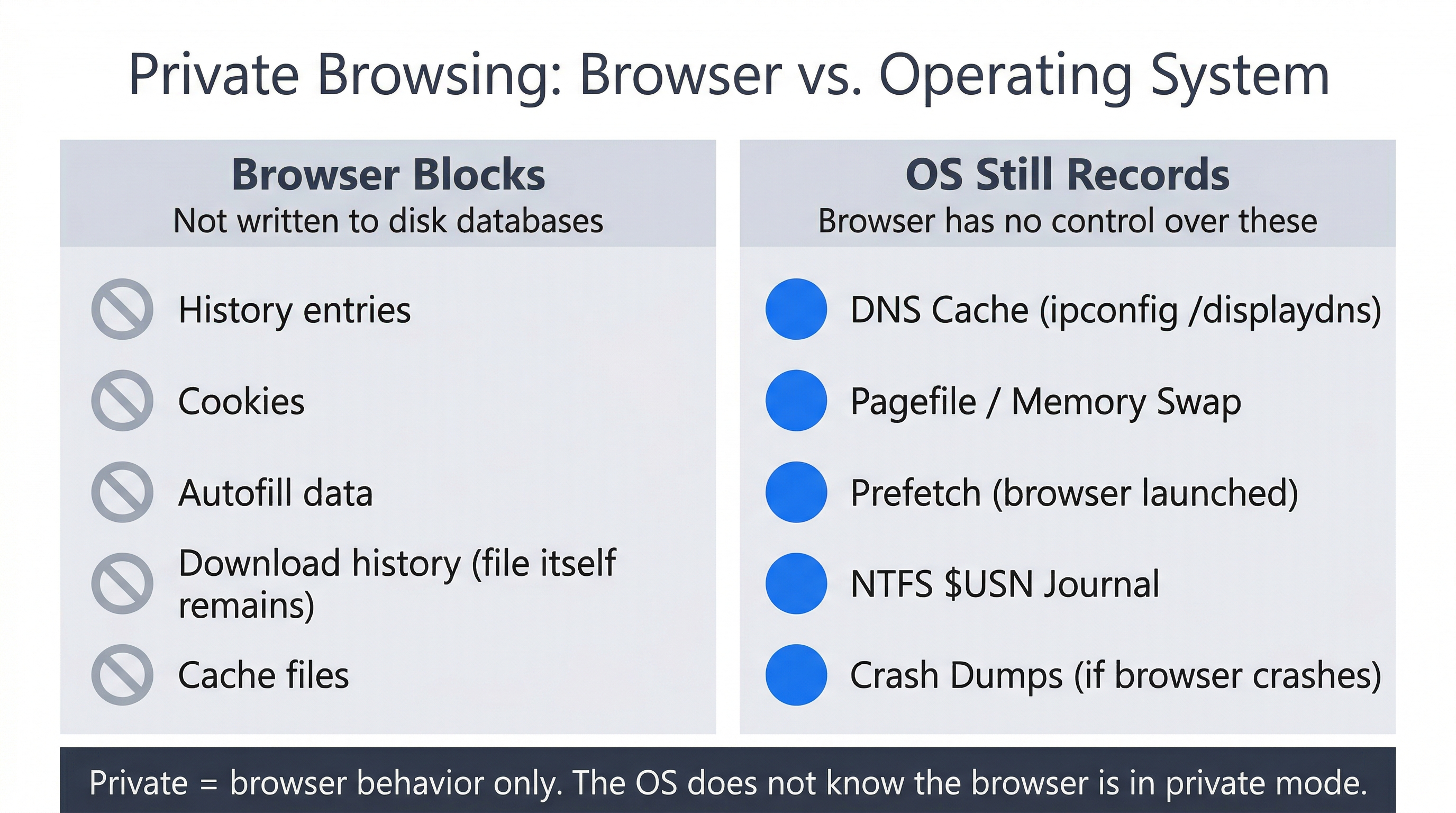
When a user opens a Chrome Incognito window or a Firefox Private window, the browser does not write history, cookies, or form data to the on-disk databases. When the private window closes, the session data is discarded.
However, "private" refers only to the browser application's behavior. The operating system is not aware that the browser is in private mode, and several OS-level artifacts may still capture evidence:
- DNS Cache: Windows resolves domain names for private browsing sessions the same way it does for regular sessions. The local DNS cache (
ipconfig /displaydns) may contain domains visited in private mode. - Memory and Pagefile: While the private session is open, its data exists in RAM. If Windows swaps memory to
pagefile.sysorswapfile.sys, fragments of browsing data may be written to disk. Memory forensics techniques from Chapters 8-9 can recover this data. - Prefetch: The Prefetch file for
chrome.exeorfirefox.exeis updated regardless of browsing mode, proving the browser was launched. - NTFS Journal ($USN): File system operations related to the browser's temporary files may be recorded in the USN Journal, even if the files themselves were deleted when the private window closed.
- Crash Dumps: If the browser crashes during a private session, the crash dump may contain URLs, page content, and session data.
AI-Integrated Browsers
As of March 2026, several browsers now integrate AI assistants directly into the browsing experience. Microsoft Edge includes Copilot, and newer entrants like Perplexity Comet and OpenAI Operator provide AI-powered search and browsing capabilities. These browsers are still built on the Chromium engine, which means the standard artifact locations described in Section 11.2 still apply for core browsing data.
The forensic questions that AI integration introduces are still being explored by the community:
- Are AI conversation logs or query histories stored in local SQLite databases, Local Storage, or only server-side?
- Do AI-generated search summaries persist in the browser cache?
- Are there new database tables or Local Storage entries specific to the AI features?
Because these products are evolving rapidly, the specific artifact locations may change between browser versions. When encountering an AI-integrated browser in an investigation, start with the standard Chromium analysis workflow, then examine the profile directory for any unfamiliar database files or Local Storage entries that may contain AI-specific data. Document your findings and tool versions carefully, as reproducibility will depend on the exact browser build.
Analyst Perspective
The presence of an AI browser is itself an artifact. If a user installed Perplexity Comet or OpenAI Operator, that installation is recorded in the file system (timestamps on the application directory, Prefetch entries, Registry keys under HKLM\SOFTWARE\Microsoft\Windows\CurrentVersion\Uninstall). Even if the AI conversation logs are stored server-side and not locally recoverable, you can establish that the user had the tool installed and when they used it.
TOR Browser
The TOR (The Onion Router) Browser is designed specifically to resist forensic analysis. It routes traffic through multiple encrypted relay nodes, uses a modified version of Firefox configured for maximum privacy, and stores no persistent browsing history, cookies, or cache on disk.
From a forensic standpoint, recovering the content of a TOR browsing session from the local disk is extremely difficult by design. However, proving that TOR was used is often achievable:
- File system artifacts: The TOR Browser is typically installed as a portable application. The directory (
Tor Browser\) has $MFT timestamps showing when it was created, modified, and last accessed. The$USN Journalmay record file operations within the directory. - Prefetch: Windows Prefetch will record execution of
firefox.exefrom the TOR Browser directory (the path in the Prefetch file distinguishes it from a standard Firefox installation) andtor.exe. - UserAssist: Registry UserAssist entries (Chapter 5) record GUI program launches with execution counts and timestamps.
- Memory: If the system is captured while TOR is running, memory forensics may recover URLs, page content, and session data from the browser process's memory space.
The forensic strategy with TOR shifts from "what did they browse?" to "can we prove they used TOR, when, and how often?" Combined with network logs (if available), this can be sufficient to support an investigation.
11.8 Forensic Tooling: From Triage to Deep Analysis
Browser forensic tools operate at different levels of depth and speed. A structured workflow uses the right tool for each phase of analysis.
Triage Tools: NirSoft Suite
The NirSoft suite provides fast, standalone executables for initial evidence triage:
- BrowsingHistoryView reads history from all installed browsers (Chrome, Firefox, Edge, IE) and displays them in a single unified table, sortable by time. This cross-browser view quickly reveals whether a user switched between browsers during a relevant time period.
- ChromeCacheView displays cached files from Chrome/Edge with file type, URL, and size. You can export cached images, documents, or scripts for further analysis.
- WebBrowserPassView recovers saved passwords from all major browsers (requires access to the user's Windows login credentials for DPAPI decryption).
NirSoft tools are excellent for speed but limited in depth. They do not expose raw database fields, perform custom queries, or handle complex timestamp analysis.
Analysis Tools: Hindsight and DB Browser
Hindsight is an open-source Python tool specifically designed for Chromium browser forensics. It parses History, Cookies, Cache, Local Storage, and other databases, automatically decodes WebKit timestamps, and produces a timeline in Excel format. It handles schema changes across Chrome versions and performs the table joins that would be tedious to do manually.
DB Browser for SQLite is the manual analysis workhorse covered in Section 11.4. Use it when you need to inspect raw data, write custom queries, or examine tables that automated tools do not parse.
Commercial and Enterprise Tools
For larger investigations or environments requiring formal reporting:
- Sanderson Forensics SQLite Forensic Toolkit: Purpose-built for forensic SQLite analysis with automatic timestamp decoding and report generation.
- OSForensics (PassMark): Includes a browser artifact module that parses history, cache, and downloads across major browsers with integrated timeline views.
- Belkasoft Evidence Center: Enterprise forensic platform with deep browser analysis capabilities, including Local Storage and IndexedDB parsing.
- Autopsy: Open-source digital forensics platform with browser analysis modules for both Chromium and Firefox artifacts.
Tool Selection Matrix
| Capability | NirSoft | Hindsight | DB Browser | Sanderson Forensics | OSForensics |
|---|---|---|---|---|---|
| Multi-browser history | Yes | Chromium only | Manual per DB | Per DB | Yes |
| Automatic timestamp decode | Yes | Yes | Manual/SQL | Yes | Yes |
| Custom SQL queries | No | No | Yes | Yes | No |
| Cache analysis | ChromeCacheView | Yes | No | No | Yes |
| Password recovery | WebBrowserPassView | No | No | No | Yes |
| Local Storage / IndexedDB | No | Partial | No | No | Yes |
| Formal report export | CSV only | Excel | CSV/SQL | PDF/Excel | PDF/HTML |
| Cost | Free | Free | Free | Commercial | Commercial |
Putting It Together: Corporate Fraud at Lakeview Manufacturing
Lakeview Manufacturing is a mid-sized industrial parts manufacturer with 200 employees. The HR department flags Marcus Chen, a Regional Sales Manager, after a routine expense audit reveals unusual patterns: multiple business formation filing fees, payments to suppliers not in Lakeview's approved vendor list, and a sharp increase in "client entertainment" expenses that do not correspond to any documented client meetings.
HR requests a forensic examination of Chen's company-issued workstation. Legal counsel authorizes the investigation under the company's acceptable use policy. IT creates a forensic image of the workstation using FTK Imager. The forensic analyst begins with browser artifacts.
Step 1: Identify Browser Profiles
The analyst navigates the acquired image and finds three browser profile directories:
- Chrome Default profile at
AppData\Local\Google\Chrome\User Data\Default\ - Chrome "Profile 1" at
AppData\Local\Google\Chrome\User Data\Profile 1\ - Edge Default profile at
AppData\Local\Microsoft\Edge\User Data\Default\
The existence of a second Chrome profile is noted immediately. All three profiles are acquired for analysis.
Step 2: Triage with Hindsight and NirSoft
The analyst runs Hindsight against both Chrome profiles and BrowsingHistoryView against the full image. The unified timeline reveals:
- The Default Chrome profile contains normal work activity: Lakeview's CRM system, vendor portals, email.
- Chrome Profile 1 contains activity that does not match Chen's job duties: visits to a state business registration portal, a competing parts supplier, a web-based invoicing application (FreshBooks), and a domain registration site.
- Edge shows minimal use, mostly Microsoft 365 access.
Step 3: Deep Analysis with DB Browser
The analyst opens Chrome Profile 1's History database in DB Browser for SQLite and runs targeted queries.
Keyword search terms reveal searches for: "how to register LLC in Ohio," "wholesale industrial fastener suppliers," "invoice template for parts sales," and "can employer see second chrome profile."
The urls table filtered with WHERE typed_count > 0 shows Chen manually typed freshbooks.com, ohiobusinesscentral.gov, and a domain (chen-industrial-supply.com) that appears to be his competing business.
The downloads table shows Chen downloaded supplier catalogs, a blank W-9 form, and an Ohio LLC filing confirmation PDF. The target paths point to a folder named C:\Users\mchen\Documents\CIS\ (likely "Chen Industrial Supply").
Step 4: Autofill and Cookies
The Web Data database's autofill table reveals form entries including a business name ("Chen Industrial Supply LLC"), a PO Box address, a personal cell phone number, and a business email address at the competing domain.
The Cookies database contains authentication cookies for FreshBooks, confirming Chen was logged into the invoicing platform. Timestamp analysis shows these sessions occurred during business hours on workdays.
Step 5: Timestamp Correlation
The analyst decodes all WebKit timestamps using EpochConverter and cross-references them with Chen's work calendar. The browser activity related to Chen Industrial Supply occurred exclusively during Lakeview business hours (8:00 AM to 5:00 PM, Monday through Friday), using Lakeview's network and equipment. The earliest activity dates to approximately four months before the HR referral.
Step 6: Documentation
The analyst documents all findings with screenshots from DB Browser, decoded timestamps, and the specific SQL queries used. The report establishes that Chen used company resources during work hours to form a competing business, source products from unapproved suppliers, generate invoices through a third-party platform, and submit fabricated expense reports to fund the operation.
Chapter Summary
Web browsers generate some of the richest forensic evidence available on a Windows system. Understanding how browsers store data and how to extract it methodically is a core competency for any digital forensic examiner.
-
Chromium and Gecko are the two browser engines that power nearly all modern browsers. Chromium-based browsers (Chrome, Edge, Brave) share identical artifact structures. Firefox uses a parallel but distinct set of SQLite databases and JSON files.
-
Browser data is stored in SQLite databases that can be opened with any SQLite-compatible tool. No browser installation is required on the forensic workstation. Always acquire the main database file along with its
-waland-journalcompanions to ensure complete data. -
SQL queries are the mechanism for extracting specific evidence from browser databases. The
SELECT,WHERE, andORDER BYcommands handle the majority of forensic queries. Joins connect data across related tables. Automated tools perform these operations behind the scenes. -
DB Browser for SQLite is the primary manual analysis tool. It provides a graphical interface for browsing tables, filtering data, and executing custom SQL queries. Commercial tools like Sanderson Forensics' SQLite Forensic Toolkit add automated timestamp decoding and report generation.
-
WebKit timestamps (Chromium) count microseconds since January 1, 1601. UNIX timestamps (Firefox) count microseconds since January 1, 1970. Both require conversion to human-readable dates. Always verify decoded timestamps against known events.
-
Cookies, autofill data, and Local Storage extend analysis beyond history and downloads. Autofill entries reveal names, addresses, and financial data entered into web forms. Cookies prove authentication state and session timing.
-
Private browsing prevents the browser from writing to its databases but does not prevent the operating system from recording DNS cache entries, memory page-outs, Prefetch data, or NTFS Journal entries.
-
AI-integrated browsers (as of March 2026) are still Chromium-based and produce standard artifacts. AI-specific data storage locations are evolving and should be investigated on a per-version basis.
-
TOR Browser resists content recovery by design, but file system artifacts, Prefetch entries, and UserAssist keys can prove installation and execution.
In the next chapter, we shift from browser-stored evidence to another critical communication channel: Email Forensics, where we examine email architecture, header analysis, and the recovery of deleted messages across desktop and web-based email platforms.